Downloading Your Photos
If your photographer has allowed downloads, you can save photos from your gallery to your computer or phone. This guide covers downloading single photos, downloading the whole gallery as a ZIP file, and the My Downloads list.
Your photographer decides what you can download. They can allow single photos, the whole gallery, or both, and they choose which sizes are available. If you don't see a download option described here, your photographer hasn't turned it on for your gallery.
Choosing a Size
Your photographer can offer one or both of these sizes:
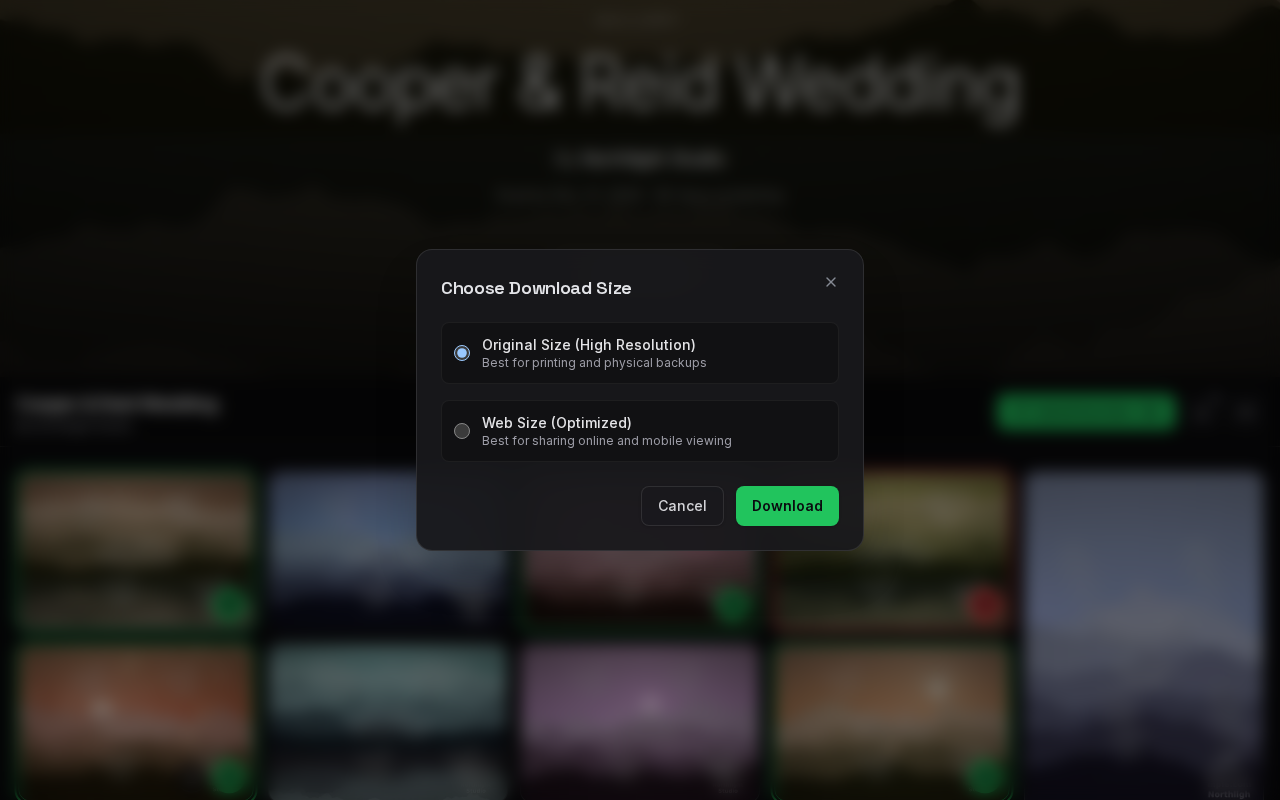
- Original Size (High Resolution): the full-quality file your photographer delivered. Best for printing and physical backups.
- Web Size (Optimized): a smaller copy, up to 1920 pixels on its longest side. Best for sharing online and mobile viewing.
If both sizes are offered, a Choose Download Size window opens each time you download. Original Size is picked for you. Choose the size you want, then click Download, or Cancel to go back. If only one size is offered, your download starts straight away in that size.
Downloaded photos do not carry the watermark you may see while viewing the gallery.
Downloading a Single Photo
- Move your mouse over the photo in the grid and click the download button (arrow icon) in its bottom corner. You can also open the photo fullscreen and click the download button at the top.
- Choose a size if you are asked.
- A small card in the corner shows Downloading..., then Downloaded when the photo is saved. If something goes wrong it shows Failed to download. Just try again.
The photo is saved with its original file name, in your browser's usual downloads folder.
Downloading the Whole Gallery (ZIP)
A full gallery download packs every photo into a single ZIP file. A large gallery can take a while to prepare, so PixoProof prepares it for you in the background and emails you when it's ready.
1. Start the Download
- Open the menu (three lines, top right) and click Start download.
- Choose a size if you are asked.
The ZIP always contains the whole gallery, whichever tab you are on. If your gallery is split into sets, each set gets its own folder inside the ZIP.
2. Wait While It's Prepared
A Preparing your download window confirms: Your gallery download has started. We'll email you when your ZIP is ready. You don't need to keep this page open.
- Click Close to carry on browsing, or close the page altogether.
- Click Open My Downloads to watch its progress.
If the same ZIP has already been prepared, there is nothing to wait for. Your download starts straight away and you'll see Your download has started.
3. Download When It's Ready
When the ZIP is ready you will receive an email saying Your ZIP of [gallery name] is ready. Click Open My Downloads in the email, then click Download next to your ZIP.
You can also come back to the gallery at any time and open My Downloads yourself. The ZIP file is named after your gallery, for example Smith Wedding.zip.
My Downloads
My Downloads lists the ZIP files you have requested for this gallery. To open it:
- Open the menu and click My Downloads, or
- Click the download icon next to the menu button. This icon appears while a ZIP is being prepared (pulsing grey dot) or is ready (coloured dot).
Each ZIP shows what it contains and its size, for example All Photos · Original or All Photos · Web Size, and one of these:
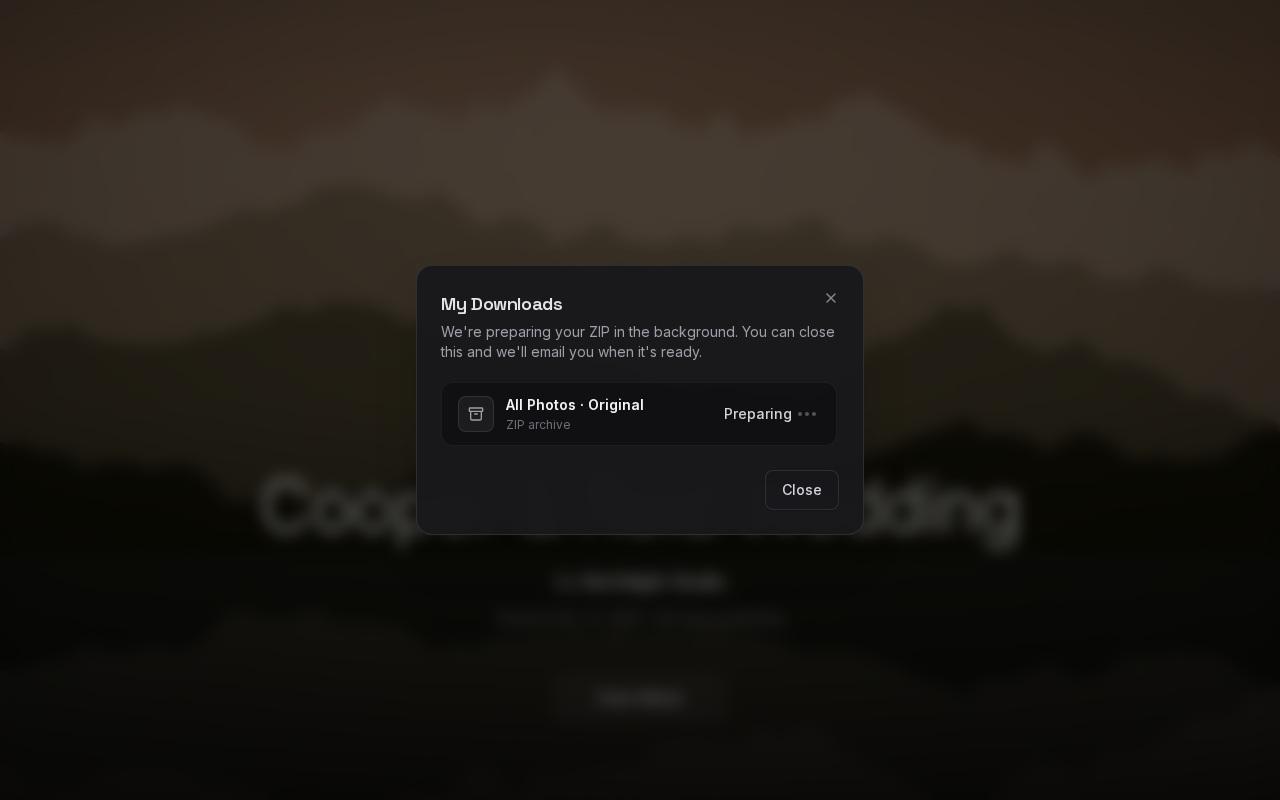
- Preparing, with moving dots: still being built. The list refreshes by itself, so you can leave it open.
- Download: ready. Click it to start the download. You can download it again as many times as you need while it is listed.
- Couldn't prepare this download. with a Try Again button: something went wrong. Click Try Again to prepare it again. We also email you when a ZIP couldn't be prepared; its Try again button brings you back to My Downloads.
If you haven't requested anything yet, you will see: No downloads yet. Use Start download to prepare a ZIP of this gallery.
Requesting the same size again doesn't create a duplicate. You'll get the same ZIP back. If your photographer offers both sizes, you can have one ZIP of each.
How Long ZIP Files Stay Available
- A prepared ZIP stays in My Downloads for 7 days from when it became ready. After that it disappears from the list. Just click Start download to prepare a fresh one.
- Each time you click Download, PixoProof creates a fresh, private download link for you, so a ZIP keeps working for as long as it is listed.
- If your photographer adds, removes, or changes photos, any ZIP you haven't downloaded yet is automatically prepared again with the updated photos, so you always get the current gallery.
Opening My Downloads from the Email
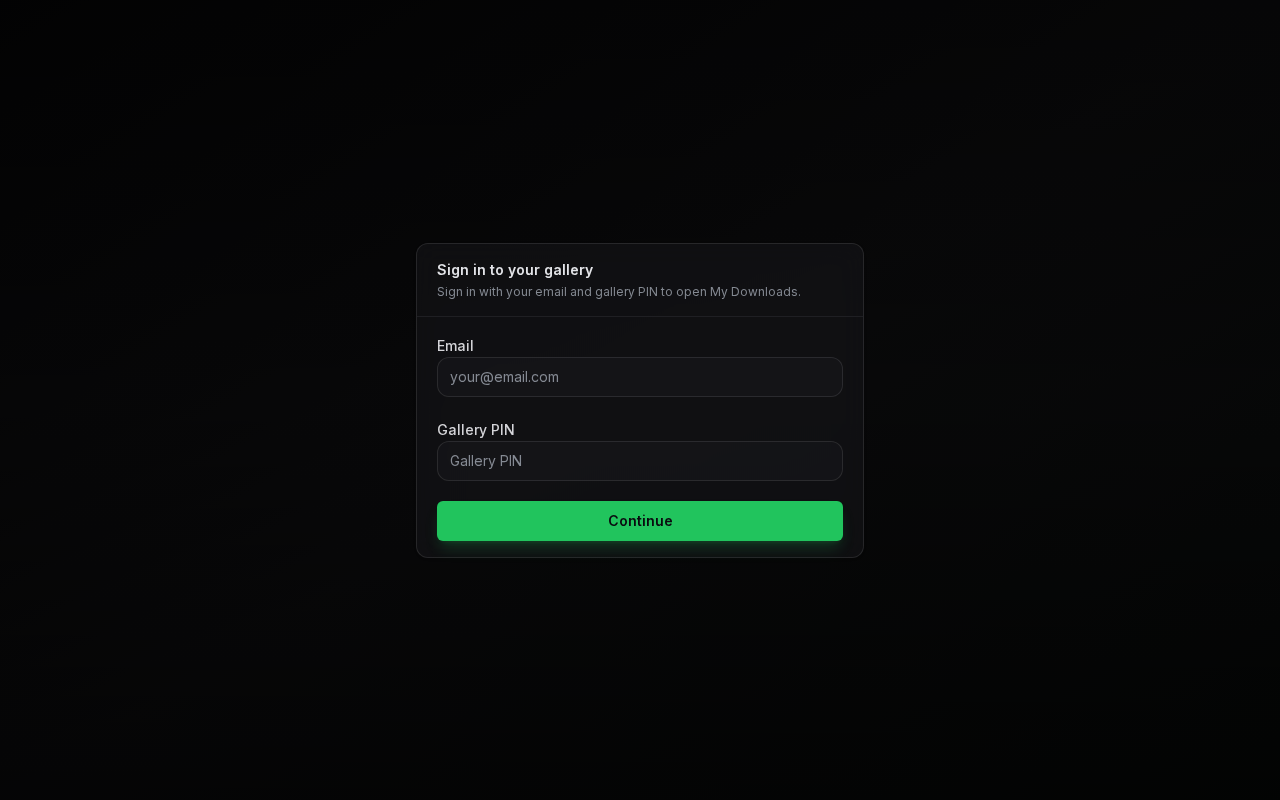
The Open My Downloads button in the email opens your gallery with My Downloads already showing. If you are not signed in on that browser, you will see Sign in to your gallery first: enter the email address your photographer invited and your Gallery PIN, then click Continue. My Downloads opens straight after.
If your gallery is only available in the PixoProof app, the email button says Open in the PixoProof app instead. Open the app, choose the gallery, and you'll find your ZIP under My Downloads.
Downloading in the PixoProof App
The app uses the same Start download and My Downloads options. For where photos and ZIP files are saved on your phone, see Mobile Gallery Viewer & Protection.
When Downloads Are Turned Off
If your photographer has not allowed downloads:
- There is no download button on your photos.
- Start download and My Downloads do not appear in the menu.
- The built-in guide skips its download step.
If downloads are turned off, or a size you need isn't offered, contact your photographer. They can change the gallery's download settings for you.
Downloads also stop once a gallery has expired or been closed by your photographer. If you still need your photos, ask your photographer to extend or reopen the gallery.