Viewing Your Gallery
Once you have entered your email and Gallery PIN, your gallery opens in your web browser. This guide explains everything you see on the page and how to move around it.
The Gallery Cover
The gallery opens on a full-screen cover chosen by your photographer. Your photographer also chooses the gallery's design, so the cover layout, colours, and fonts may differ from gallery to gallery. On a phone, the cover photo and title may stack, with the photo on top. The cover shows:
- The gallery name, and the event date if your photographer added one.
- Your photographer's studio name (By followed by the studio name).
- The gallery's expiry date, if it has one (see When Your Gallery Expires below).
Click View Album, or simply scroll down, to jump to your photos.
The Top Bar
As you scroll through your photos, a bar stays pinned to the top of the screen. It contains:
- Gallery name and studio name on the left.
- Tabs, if your photographer split the gallery into sets (for example Ceremony or Reception). Each tab shows the set name and how many photos it holds, such as Ceremony (120). Click a tab to switch sets. The first set opens by default.
- Favorites, a tab showing how many photos you have picked, for example Favorites (12). If your photographer set a selection limit, the limit is shown too, for example Favorites (12 / 30). This tab only appears when your photographer allows favourites.
- Submit favorites, the button you use to send your picks to your photographer once you are finished. It shows how many photos you have picked.
- The menu button (three lines) on the right.
The Menu
The menu holds the rest of the gallery's actions. Depending on what your photographer has allowed, you will see:
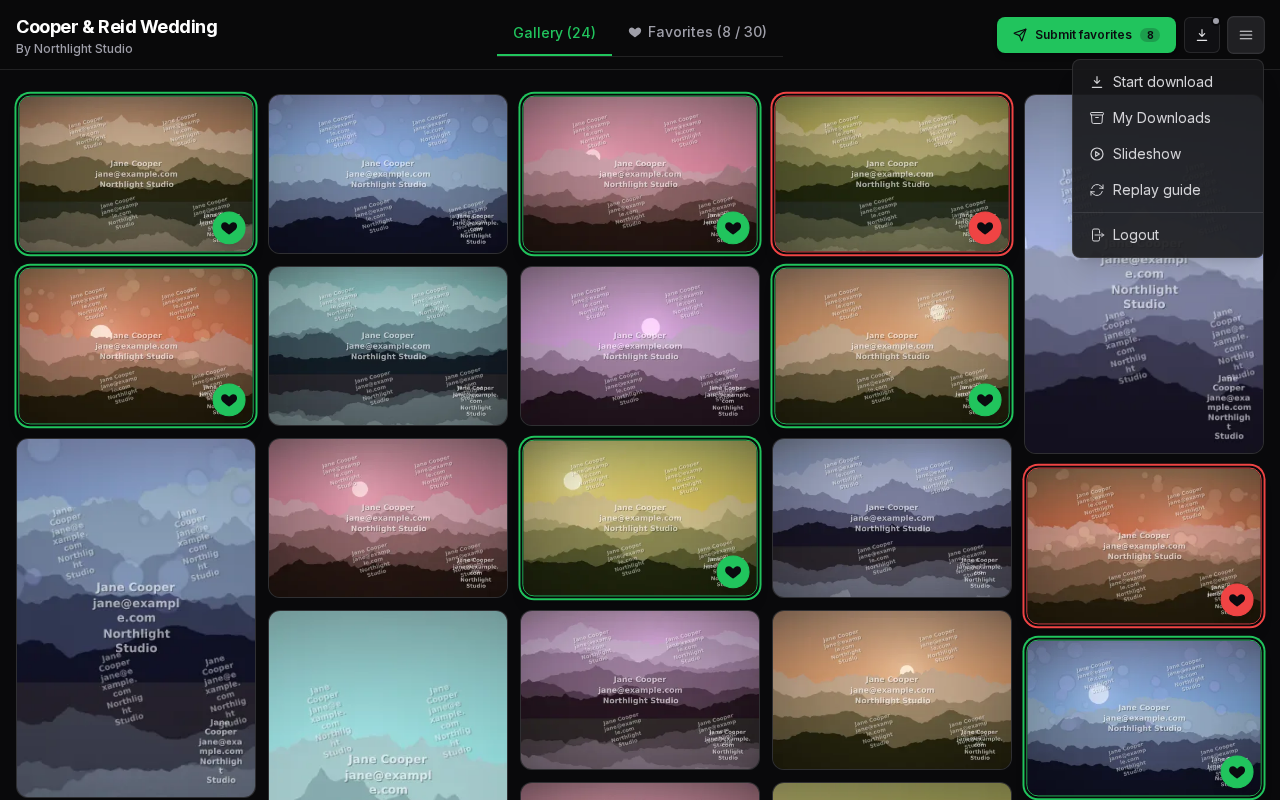
- Start download: prepares a ZIP file of the whole gallery. Only shown when your photographer allows full gallery downloads. See Downloading Your Photos.
- My Downloads: your prepared ZIP files, ready to download.
- Slideshow: plays the photos in the current tab, one after another.
- Replay guide: shows the short welcome guide again.
- Logout: signs you out of the gallery on this browser.
When a ZIP is being prepared or is ready, a download icon also appears next to the menu button. A pulsing grey dot on the icon means a ZIP is still being prepared; a coloured dot means one is ready to download.
Browsing Your Photos
Photos are laid out in a grid that keeps each photo's original shape. More photos load automatically as you scroll down. You will see Loading more photos... at the bottom while they arrive.
When you have scrolled a long way down, a round arrow button appears at the bottom of the screen. Click it to go straight back to the top.
When you move your mouse over a photo, small buttons appear in its bottom corner:
- Download (arrow icon): saves this one photo. Only shown when your photographer allows single photo downloads.
- Heart: adds the photo to your favourites, or removes it. Only shown when your photographer allows favourites. See How to Select Your Photos.
On a touch screen, tap a photo to open it fullscreen, where the same buttons are always visible.
Viewing a Photo Fullscreen
Click any photo to open it in the fullscreen viewer. The viewer shows:
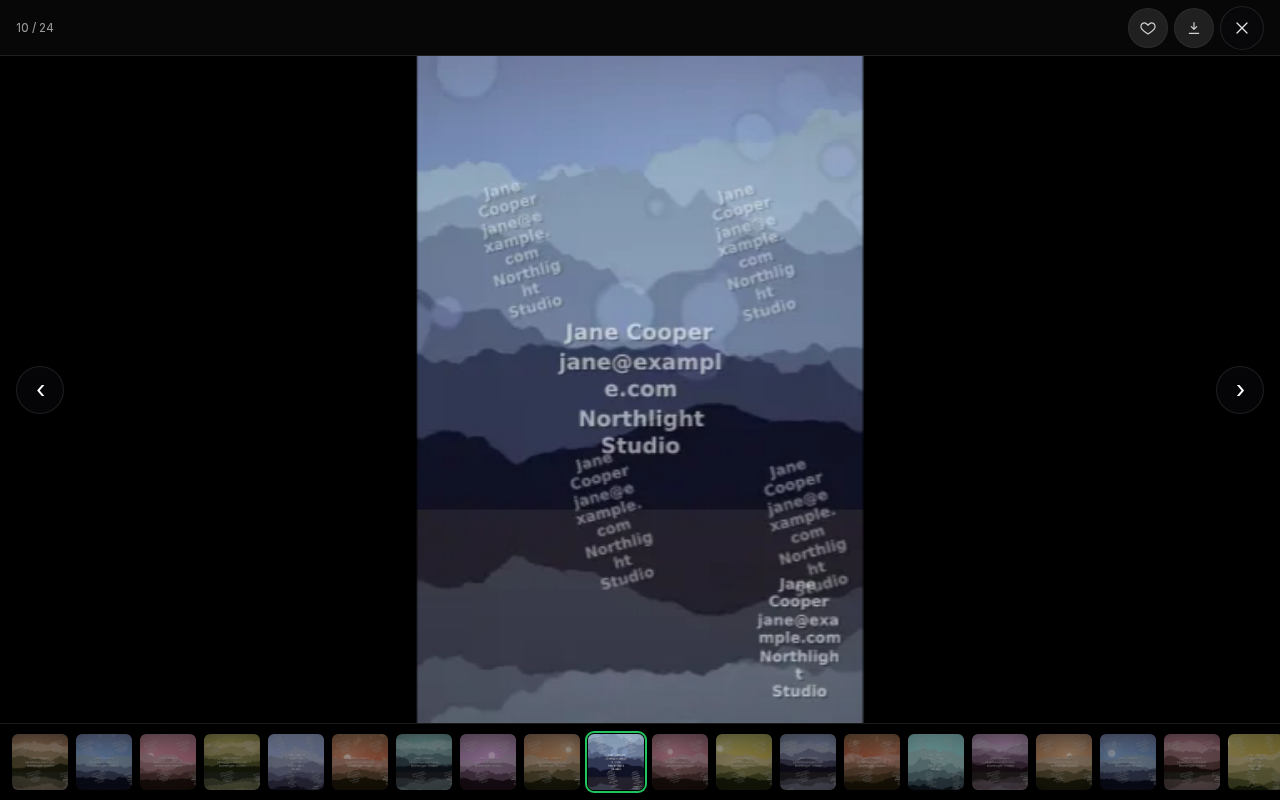
- A counter at the top, such as 5 / 120, telling you where you are in the gallery.
- The heart and download buttons for the photo on screen, when your photographer allows them.
- On the Favorites tab only, a note button for leaving your photographer a note about the photo (when notes are allowed).
- A strip of small thumbnails along the bottom. Click any thumbnail to jump straight to that photo.
Moving Between Photos
- Click the ‹ and › arrows on either side of the photo.
- Or use the Left and Right arrow keys on your keyboard.
Zooming In
- Double-click the photo to zoom in to full detail. Double-click again to step back out.
- Use your mouse wheel or trackpad to zoom in and out gradually.
- On a touch screen, pinch to zoom.
- While zoomed in, drag the photo to look around it.
Closing the Viewer
Click the X button in the top-right corner, or press Esc on your keyboard.
Keyboard Shortcuts
In the fullscreen viewer:
- Left arrow: previous photo
- Right arrow: next photo
- Esc: close the viewer
Playing a Slideshow
- Open the menu and click Slideshow.
- The photos in your current tab play fullscreen, starting from the first photo. A new photo appears every few seconds, and the slideshow starts again from the beginning when it reaches the end.
- Click the photo to show the slideshow controls. Use the pause and play button to pause or carry on, and the X in the controls to stop the slideshow. The controls fade away again after a few seconds.
The slideshow waits while you are zoomed in on a photo, so you can take a closer look without it moving on.
Watermarks and Photo Protection
Your photographer's work is protected while you view it:
- If your photographer has turned on watermarks, the photos you view in the gallery show their watermark. Photos you download do not include this viewing watermark.
- Right-clicking, dragging, and copying photos are turned off in the gallery.
- If you switch to another tab or window, or use a screenshot shortcut, the gallery is covered with a Gallery Protected message: This gallery is temporarily hidden. Your photos come back as soon as you return to the gallery tab.
When Your Gallery Expires
Many photographers keep a gallery open for a set time. If your gallery has an expiry date, it appears on the gallery cover, for example:
- Expires Sep 20, 2026 · 10 days remaining
- Expires Sep 20, 2026 · Expires today
- Expired Sep 20, 2026
Once a gallery has expired, you can no longer view or download its photos. If you still need it, contact your photographer and ask them to extend the gallery. For other messages you might see, see Troubleshooting Access.
The Built-in Guide
The first time you open a gallery, a short guide walks you through the main controls. It has up to four steps, depending on what your photographer has turned on:
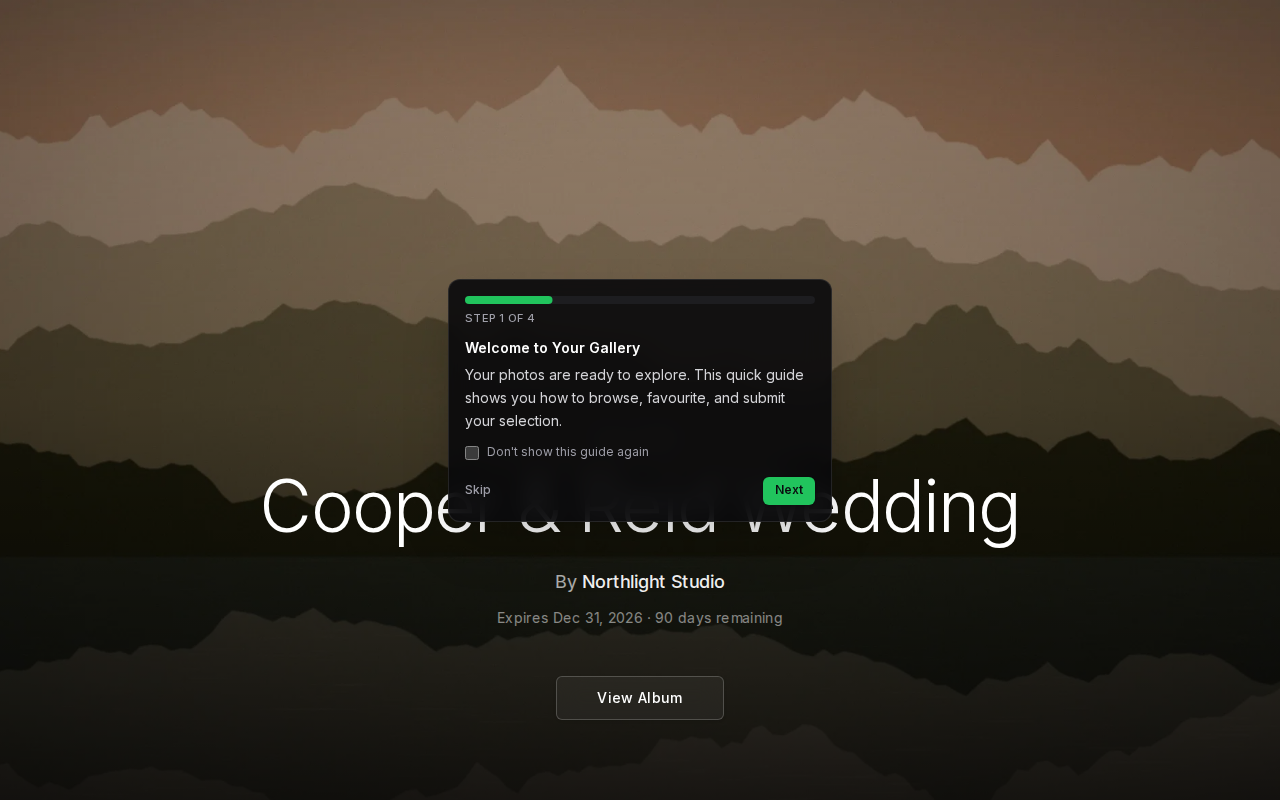
- Welcome to Your Gallery
- Pick Your Favourites, which points at the heart on a photo.
- Download Your Photos, which points at the download option in the menu.
- Selection Complete, a reminder to review and submit your favourites when you are done.
Use Next and Back to move through the guide, and Finish on the last step. Click Skip to close it at any time. You can also use the keyboard: Right arrow or Enter for the next step, Left arrow to go back, and Esc to skip.
Once you have finished or skipped the guide, it will not start on its own again for that gallery in that browser. To see it again at any time, open the menu and click Replay guide.
Signing Out
Open the menu and click Logout. To get back into the gallery later, open the invitation email from your photographer and enter your email and Gallery PIN again.