Troubleshooting Access
If you are having trouble accessing your gallery, this guide covers the most common access states and how to resolve them.
Invalid PIN Error
When entering your details on the invitation page, an incorrect email address or PIN shows a red alert just above the Open Gallery button:
Invalid invite token or PIN.
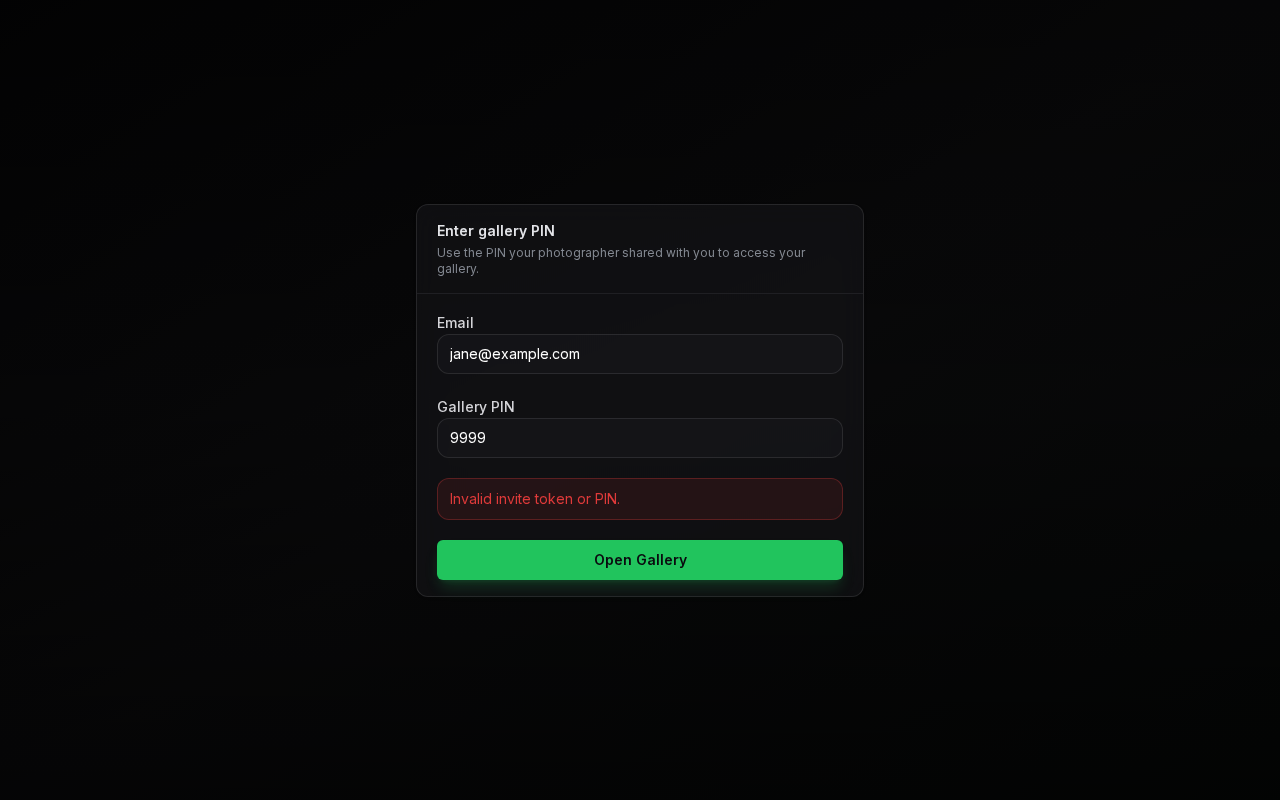
How to resolve:
- Use the email address your invitation was sent to.
- Verify the exact PIN provided in your invitation email or message.
- Ensure there are no accidental spaces before or after the PIN.
- If you cannot find your PIN or suspect it was changed, contact your photographer directly to have them re-send your invitation details.
Too Many Attempts
If several attempts fail in a row, you will see:
Too many attempts. Please wait a moment and try again.
Wait a little while, then try again with the correct email and PIN.
Gallery Expired or Unavailable
If a gallery's expiry date has passed, or your photographer has closed it, you won't be able to open it. Depending on the situation, the invitation page shows a message such as:
This gallery has expired.
This gallery is currently unavailable. Please contact your photographer.
Gallery access has been revoked or expired.
If your photographer closes the gallery while you are using it, you may instead see a full-screen Gallery Unavailable message with a lock icon: This gallery has been closed by your photographer. If you need access again, please contact your photographer.
Why this happens:
- Gallery Expiry: Photographers often keep galleries open for a set time (e.g., 30, 60, or 90 days). The expiry date is shown on your gallery's cover while it is open, and you may receive an email when it expires.
- Closed by Photographer: The photographer may close a gallery while updating it or once the project is finished.
- Closed After Submission: Some photographers set their galleries to close automatically once you submit your selection. Even when the gallery stays open, it becomes read-only after you submit.
How to resolve:
- If you still need to review, select, or download images, reach out to your photographer to request a gallery extension or reactivation.
Session Expired
If you bookmark a direct gallery address (e.g., /gallery/[album-id]) or return after a long time away, you may see a session expired notice:
Your gallery session has expired. Open the link from your invitation email to sign in again.
Why this happens:
- PixoProof uses secure browser cookies that expire to protect your photos from unauthorized access on shared devices. Clicking Logout in the gallery menu also ends your session.
How to resolve:
- Return to your original invitation email or message.
- Click the Open Your Gallery button.
- Re-enter your email and PIN to sign in again.
The Go home button on the notice takes you to the PixoProof home page, not back to your gallery.
Gallery Opens Only in the App
If the invitation page shows Your gallery is ready with an Open Gallery in App button, your photographer delivers this gallery through the PixoProof mobile app. Open the link on your phone or tablet and use the app. See Opening Your Gallery.