How to Archive an Album
PixoProof Academy: How to Archive an Album in PixoProof
Archiving allows you to retire completed or delivered galleries from your active workspace while preserving every photo, client selection, and client record safely in your library.
Where to Find the Action
You can archive an album from either the library or the workspace:
- Albums Library View: On the Albums page, locate the album card, click the overflow menu (•••), and select Archive.
- Album Workspace: Inside the album workspace (
/albums/[id]), click the action menu (⋮) on the far right of the navigation tab bar and select Archive.
Steps to Archive an Album
- Navigate to the Albums overview page or open the album you wish to archive.
- Click the action menu (••• on an album card, ⋮ inside the workspace) and choose Archive.
- An Archive album? confirmation dialog appears explaining the archive behavior.
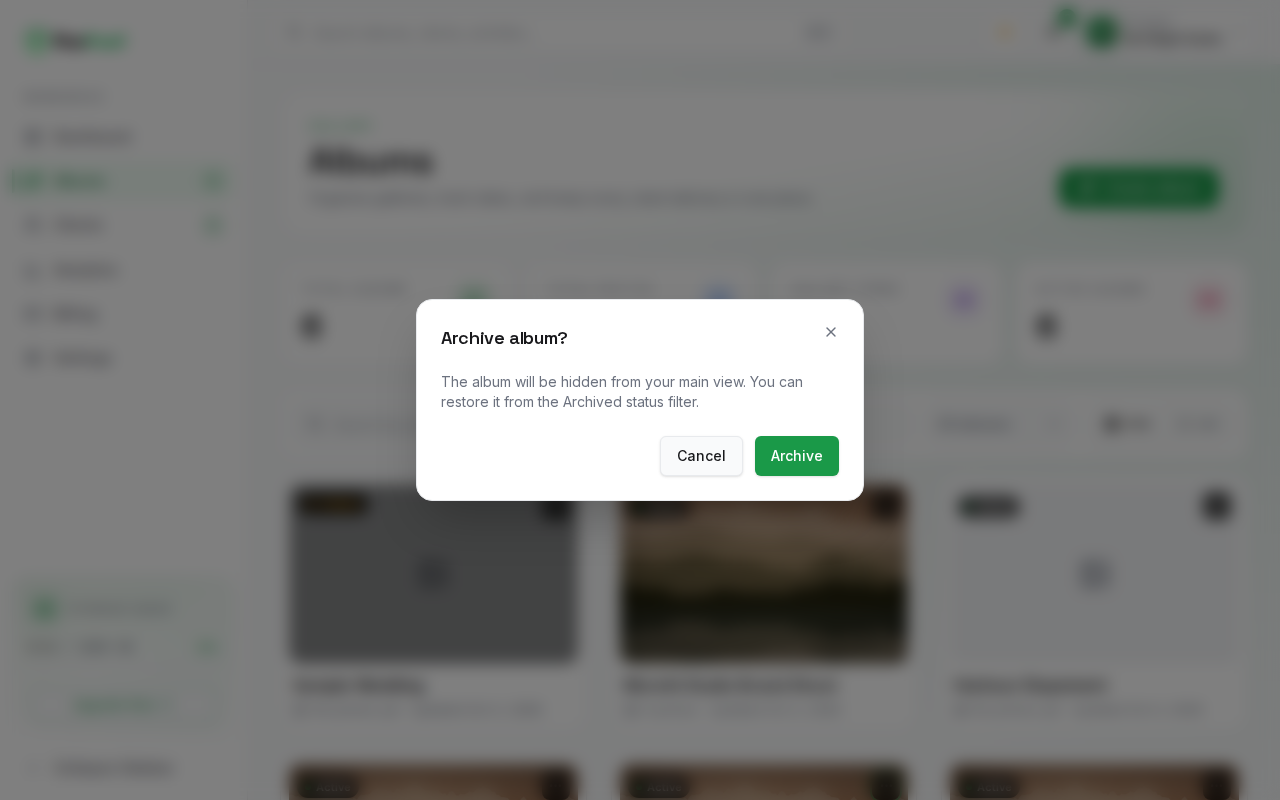
- Click Archive (from the Albums page) or Archive album (from the workspace) to confirm.
What Happens After Archiving
- Non-Destructive Storage: Archiving does not delete any photos, selections, or client records. All media remains safely preserved in cloud storage.
- Hidden from Active Workflows: The album status changes to
Archived. It no longer appears under the Active or Hidden status filters, and it is left out of your dashboard and analytics totals so your daily view remains clutter-free. It still appears when the filter is set to All statuses. - Access Suspension: Clients can no longer open an archived gallery, and the Share button in the album workspace is disabled.
- Activity Logging: An
AlbumArchivedevent is published and recorded in your studio activity.
How to View and Access Archived Albums
You can view archived albums at any time:
- Navigate to the Albums library (
/albums). - Open the status filter above the album list (it shows All statuses by default) and choose Archived.
- All archived galleries will be displayed. You can open any archived album to inspect photos or review past client selections.
Archive vs. Delete
Understanding the distinction between archiving and deleting protects your photography business from accidental data loss:
| Characteristic | Archive | Delete |
|---|---|---|
| Data Safety | 100% Non-destructive | Permanent deletion |
| Media Files | Preserved in cloud storage | Purged from Cloudflare R2 |
| Client Selections | Preserved in database | Permanently deleted |
| Visibility | Hidden from active views; visible under Archived filter | Removed entirely from dashboard |
| Reversibility | Can be inspected and reviewed at any time (there is currently no un-archive action) | Cannot be undone |
Practical Use Cases
- Annual Clean-up: Clean up your workspace after a busy wedding season by archiving completed galleries whose client delivery window has passed.
- Contract Fulfillment: Archive client projects once selections and album print deliverables have been fulfilled.
- Long-term Proofing Archives: Maintain access to past clients' photos and selection records for future reprint inquiries without cluttering active galleries.