How to Duplicate an Album
PixoProof Academy: How to Duplicate an Album in PixoProof (and What Gets Copied)
Duplicating an album allows you to reuse an existing gallery's security rules, watermark styling, download permissions, and selection limits for a new client shoot without reconfiguring every setting manually.
Where to Find the Action
You can duplicate an album from two locations:
- Albums Library View: On the Albums page, click the overflow menu (•••) on any album card and select Duplicate.
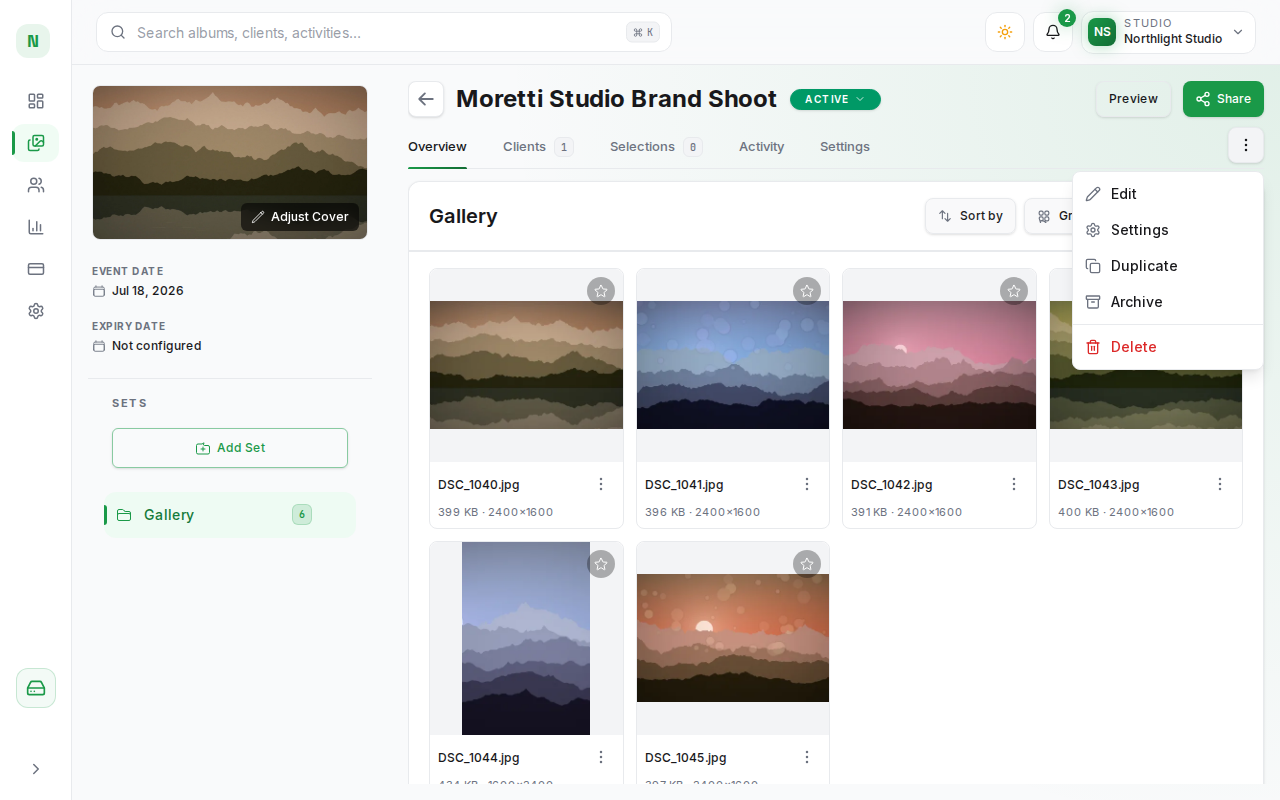
- Album Workspace: Inside an album workspace (
/albums/[id]), open the action menu (⋮) at the right of the navigation tab bar and select Duplicate.
Steps to Duplicate an Album
- Navigate to your Albums library or open the album whose settings you want to copy.
- Open the action menu (••• on an album card, ⋮ inside the workspace) and click Duplicate.
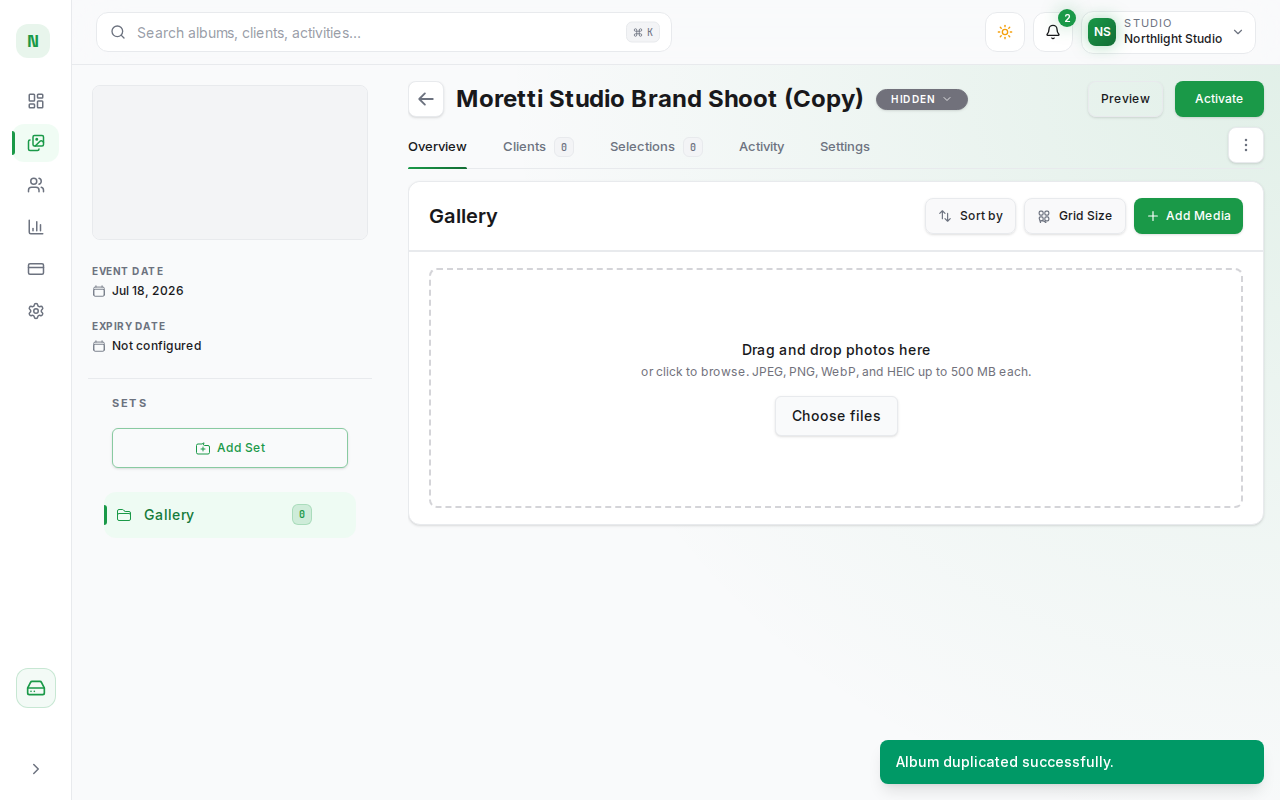
- Duplication executes immediately and a toast confirms "Album duplicated successfully." When triggered from inside an album workspace, PixoProof automatically redirects you to the new duplicated gallery.
What Is Copied vs. What Is Not Copied
PixoProof follows a strict boundary when duplicating an album to prevent client data leakage while maximizing configuration reuse:
What Is Copied
- Album Name: The original album's name is duplicated with
(Copy)appended (e.g.,Sample Wedding (Copy)). You can immediately rename it using Rename (album card) or Edit (workspace menu). - Description: Any notes or event description present in the source album are cloned.
- Album Tag & Date: The album tag and shoot date are inherited from the original album.
- Complete Album Settings: All delivery and protection configurations are duplicated:
- Watermark Settings: The watermark on/off toggle, placement style, opacity, and which details are stamped (client name, client email, studio name, logo image). An album-specific logo upload is not copied; the duplicate uses your studio logo.
- Download Permissions: The downloads toggle, full gallery and single photo download permissions, and the allowed download sizes.
- Selection & Access Controls: Selection limit, Allow web access, Allow Favorites, Allow Client Notes, and Auto hide gallery after submission.
- Expiry Parameters: Expiry date, reminder days before expiry, and the after expiry action (Hide or Delete).
- Photo Set Structure: The source album's photo set names and order are recreated as empty sets.
What Is Not Copied
- Photos & Media Files: Photos and original raw files are not duplicated. The duplicated album starts completely empty with zero media files, ready for a new photo upload.
- Gallery Link & PIN: The duplicate receives its own new gallery link and a newly generated Gallery PIN; the original's credentials are never reused.
- Clients & Invitations: Connected clients are strictly isolated. No client accounts are attached to the duplicate.
- Client Selections & Shortlists: Previous client selections, comments, and approvals remain exclusively with the original album.
Important Workflow Notes
- Instant Execution: Clicking Duplicate triggers the duplication process immediately without an intermediate modal or confirmation prompt.
- Workspace Redirection: When duplicating from within an album workspace, the browser automatically transitions to the new album's unique URL (
/albums/[new-id]). - Hidden Status: The duplicated album starts in Hidden (draft) status, so clients cannot open it until you upload photos and explicitly activate it.
Practical Use Cases
- Master Template Gallery: Create an unshared "Template — Premium Wedding" album configured with your studio's custom watermark, 50-photo selection limit, and download policies. Duplicate this master template each time you onboard a new wedding client.
- Multi-Day Events: Duplicate the primary wedding album settings when creating dedicated galleries for a Sangeet, Rehearsal Dinner, or Day-After session, ensuring consistent branding and download policies across all galleries.