How to Upgrade, Downgrade, or Change Your Subscription
PixoProof supports upgrading to higher tiers for increased storage, switching between monthly and yearly billing cycles, downgrading plans, and managing auto-renewal cancellation.
Upgrading from the Free Tier
When your studio requires more vault storage or higher tier privileges, upgrade to a paid subscription using the following workflow:
- In the left navigation menu, click Billing.
- Under Plan options, use the interval toggle to choose Monthly or Yearly billing.
- Locate the desired plan tier (such as PixoProof Essential, PixoProof Pro, or PixoProof Studio).
- Click the Upgrade button on the plan card.
- The button transitions to a "Redirecting..." state while PixoProof contacts the billing gateway to establish a secure checkout session.
- Your browser is redirected to the official Stripe Checkout page to provide payment credentials (credit card, billing address). If you have a promotion code, enter it on the Stripe Checkout page.
Checkout Results & Return Handling
After interacting with the external payment gateway, Stripe redirects your browser back to PixoProof.
Successful Checkout (/billing/success)
If payment is successfully authorized, you are redirected to the payment confirmation screen:
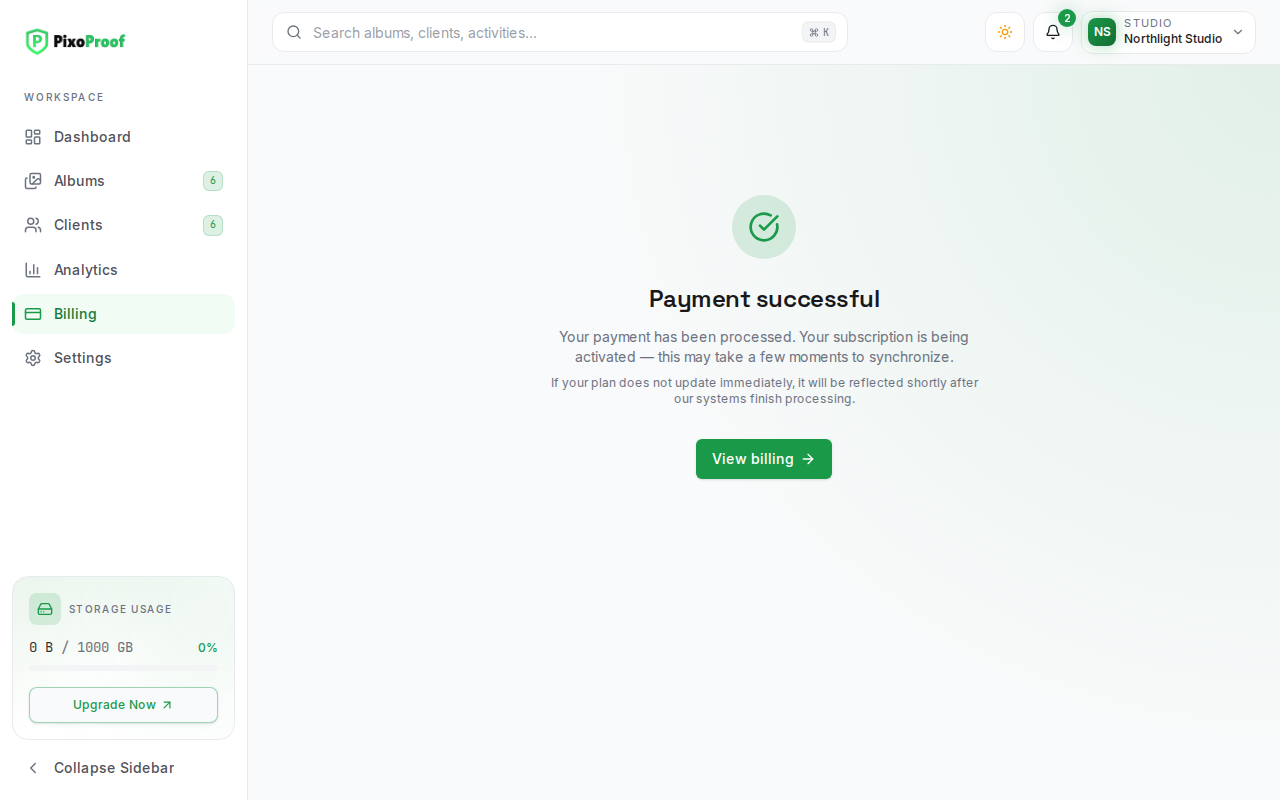
- Confirmation Message: Informs you that your payment was processed and your subscription is being activated.
- Activation Sync: A brief synchronization window occurs while webhook notifications confirm the updated plan limits.
- Return Action: Click View billing to return to the Billing page and inspect your newly expanded storage allocation.
Cancelled Checkout (/billing/cancel)
If you decide not to proceed with checkout or click the browser back button on the payment form, Stripe returns you to the cancellation screen:
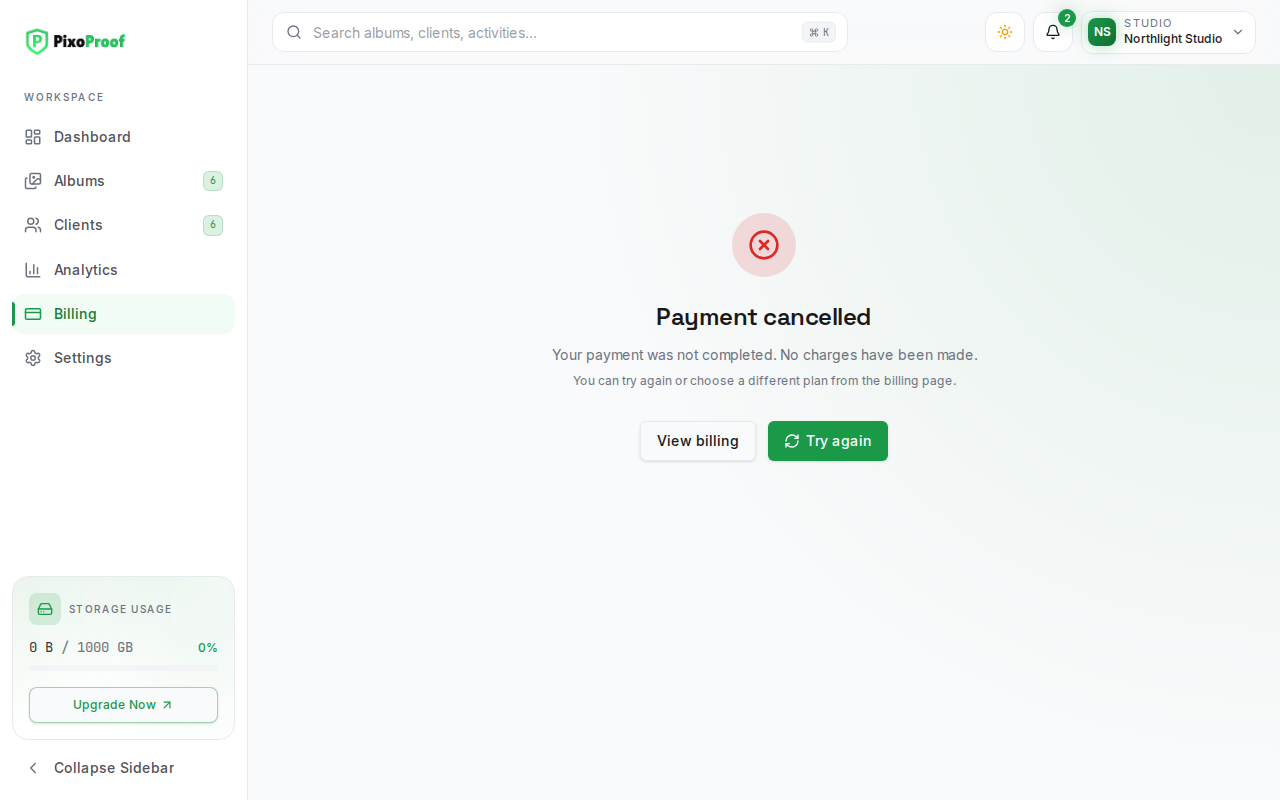
- Cancellation Notice: Confirms that the transaction was cancelled and no charges were made to your account.
- Return Options:
- Click View billing to review your current plan and storage details.
- Click Try again to return to the Billing page and re-select your preferred plan or interval.
Switching Between Paid Subscription Tiers
Photographers who already maintain an active paid subscription can adjust their package directly from the /billing page without going through full checkout again.
The Confirm Plan Change Modal
When you click Upgrade, Downgrade, or Change billing cycle on a different plan tier, the Confirm Plan Change modal appears:
- Tier Transition: Displays your current plan transitioning to the requested tier (e.g.,
PixoProof Essential → PixoProof Pro) along with the billing cadence and price. - Proration & Credit Breakdown:
- Unused credit from <current plan>: Calculates unused time remaining on your existing billing cycle.
- Prorated charge: Calculates the cost for the new tier across the remaining cycle duration.
- Tax, Discount, and Account credit applied: Displayed when they apply (for example, referral credit).
- Total due today: Highlights the exact immediate charge required to execute the transition.
- Next Billing Information: Shows the Next billing date (or Effective date for a downgrade) and the Next billing amount.
- Storage Downgrade Warning: If you attempt to downgrade to a tier whose storage capacity is lower than your currently utilized vault storage, a high-visibility warning appears alerting you that file uploads will be restricted until storage is freed.
- Confirmation: Click Confirm. Upgrades apply immediately; a downgrade is scheduled for the effective date shown, and the Current Plan card displays a pending change notice until then.
Cancelling a Subscription
Photographers can disable auto-renewal at any time without losing immediate access to their studio galleries.
- Navigate to Billing.
- In the top-right header, click the Cancel subscription button (visible on active auto-renewing subscriptions).
- A Cancel Subscription dialog appears asking: "Are you sure you want to cancel your subscription? You will continue to have access until the end of your billing cycle."
- Click Cancel Subscription to confirm.
- Auto-renew is turned off. The Current Plan card updates to show:
- Date label:
Expires - Hint:
Pending cancellation - Access: Your albums, media, and client settings remain fully accessible until the stated expiration date.
- Date label:
Reactivating a Cancelled Subscription
If your subscription is pending cancellation but has not yet reached its expiration date, you can restore auto-renewal with a single click:
- In the page header, locate the Reactivate subscription button (which replaces the cancel button).
- Click Reactivate subscription.
- Auto-renewal is instantly re-enabled, and the Current Plan card reverts to
RenewswithAuto-renew on.
Non-Implemented & Deferred Controls
To ensure strict operational clarity, the following controls shown in the UI are currently non-interactive:
- Customer Portal Button: The Customer Portal button in the header is disabled. Account changes and cancellations are executed directly via the on-page buttons.
- Manage Add-ons Button: The Manage add-ons button in the Studio at a glance card is disabled. Storage extensions are managed through plan upgrades rather than standalone add-on packages.
- Promo Codes: There is no promo code field on the PixoProof Billing page; enter promotion codes on the Stripe Checkout page when upgrading from Free. Referral rewards are managed on the Referrals page (open your profile menu in the top bar).