Preview the Gallery as a Client
Before you send a gallery to a client, use Preview to check how it looks from their side: the cover, the photo sets, the photo order, the watermark, and the download options.
Open the Preview
- Open your album.
- Click Preview in the top-right corner of the album workspace, next to Share (or Activate).
The preview opens in a new browser tab. You stay signed in as yourself, so you do not need a PIN, and you can preview an album that is still Hidden — clients cannot open it until you activate it.
What You See
The preview uses the same gallery layout your clients get:
- The cover photo, album name, studio name, and event date at the top.
- Your photo sets as tabs, with the photos in the order you chose with Sort by in the workspace.
- The full-screen viewer when you click a photo.
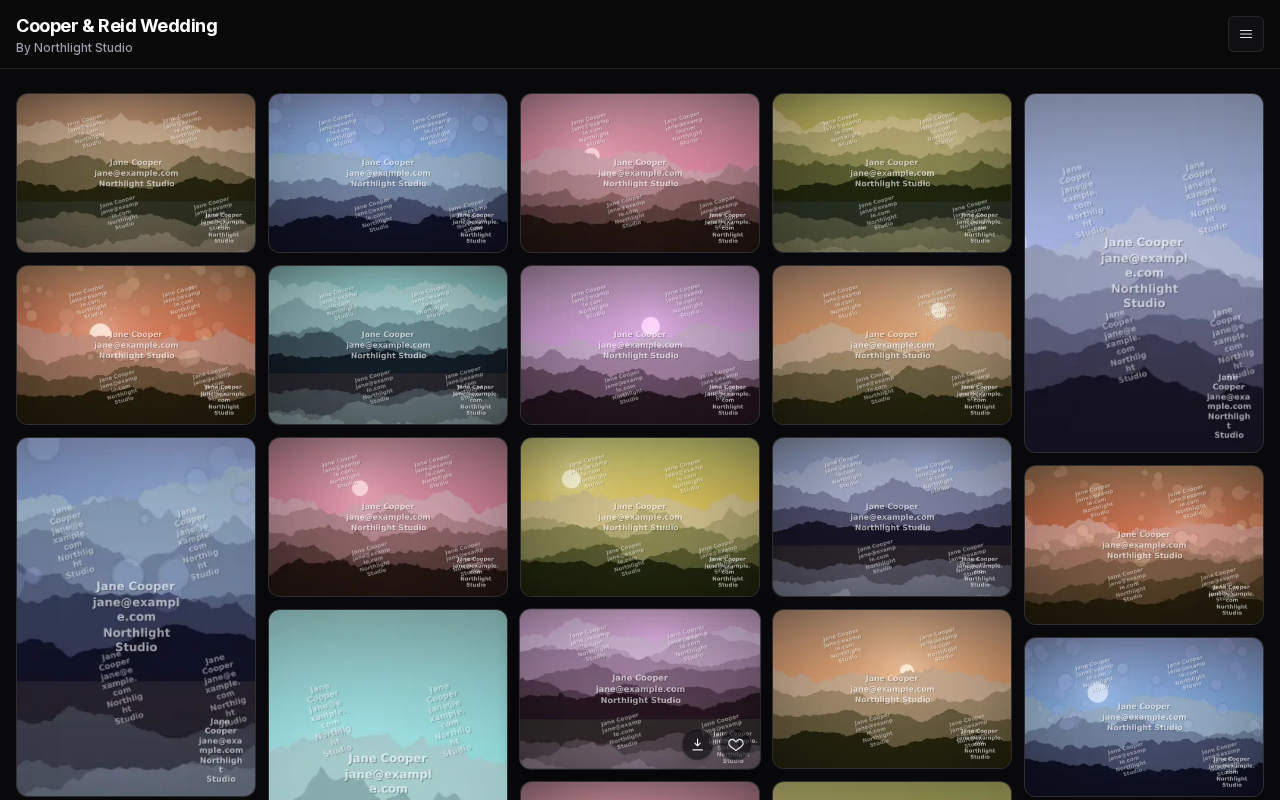
Watermarks
If Watermark protection is switched on in the album's Settings (Watermark tab), preview images show the watermark exactly as it is built for a client:
- If clients are connected to the album, the preview uses the details of the first client you connected (for example, their name and email if you include them in the watermark).
- If no clients are connected yet, the preview shows the photos without a watermark.
Your original files are never watermarked.
Downloads and Slideshow
Open the menu (☰) in the gallery header to find:
- Start download — downloads the whole gallery as a ZIP file. This appears only if downloads are enabled and Full gallery download is turned on in the album's Downloads settings.
- Slideshow — plays the photos as a slideshow.
Single-photo downloads in the preview follow the album's download settings, just as they do for clients.
What the Preview Does Not Include
The preview is for checking the look of the gallery, so the client-only parts are left out:
- There is no Favorites tab and no Submit favorites button, so you cannot make or submit a selection from the preview.
- The built-in client walkthrough does not run.
- Visiting the preview is not recorded in the album's Activity.
When you are happy with what you see, close the tab and use Share to send the gallery to your client (see Share Gallery).