How to Invite Clients & Gallery PIN Security
PixoProof Academy: How PixoProof Protects Your Client Gallery: PIN, Watermark, Downloads & App-Only
Delivering a gallery invitation connects your photography client directly to their proofing experience. PixoProof uses a specialized access model designed for zero client friction while maintaining stringent media protection.
The Two-Factor Access Architecture: Email + Gallery PIN
Traditional gallery systems force clients through complex account creation, password resets, and verification emails, leading to confusion and delayed selections.
PixoProof replaces passwords with a streamlined Two-Factor Access Model:
- Email Address: The client identifies themselves with their email address. A connected client's activity is tracked against the email on their client card; an email the album does not know yet is added to the album's clients automatically when the correct PIN is entered via the gallery link.
- Secure Gallery PIN: A PIN configured specifically for the album (a generated 6-character code by default, or a custom PIN of 4–16 characters). All clients of the album share it.
Even if an unauthorized third party discovers the gallery link, they cannot enter without the correct PIN, so share the PIN only with your clients.
How to Invite a Connected Client
Once a client is connected to your album, you can deliver their personal invitation:
- Open the album and navigate to the Clients tab.
- Find the connected client in the list and click the Share button.
- The Share Gallery dialog appears with the album's gallery link and PIN pre-populated.
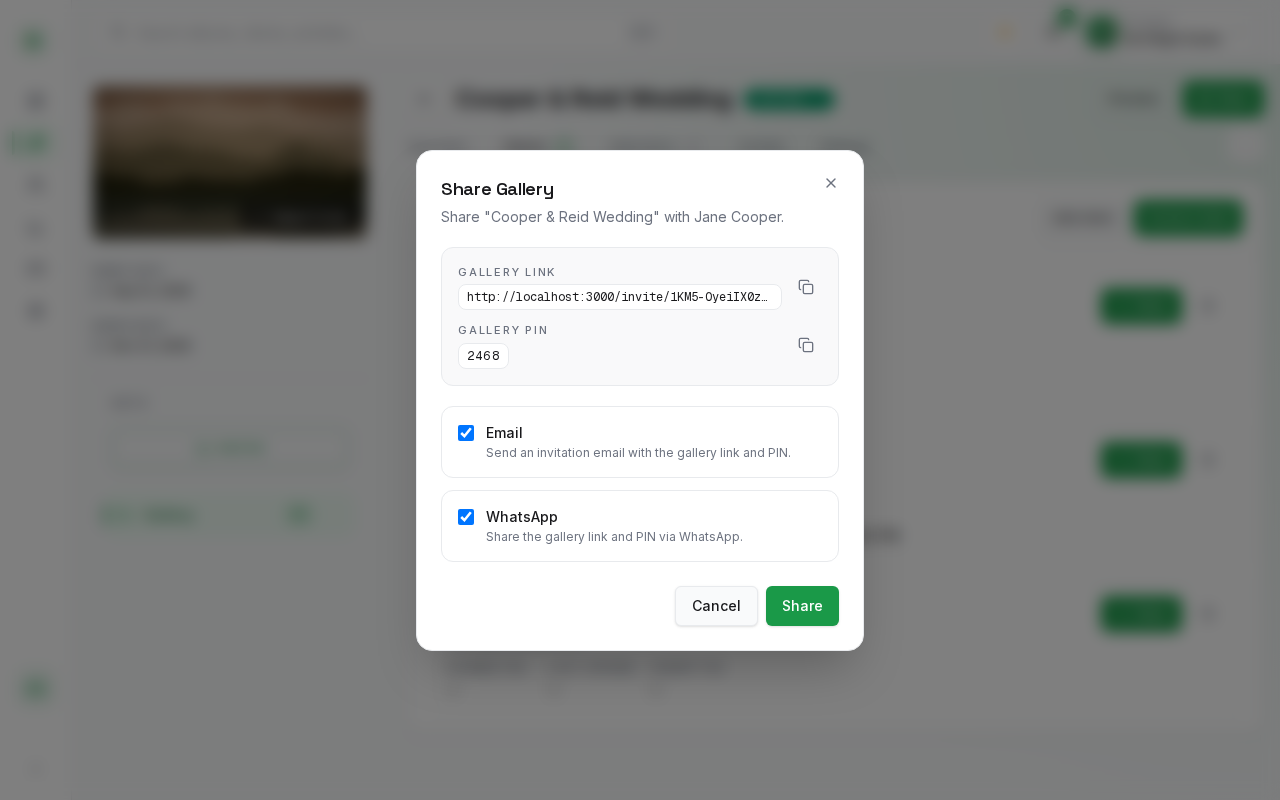
- Choose your preferred delivery method:
- Email: Keep the Email checkbox ticked to send an automated, studio-branded email directly to the client's address containing their gallery link and PIN.
- WhatsApp: Keep the WhatsApp checkbox ticked to open a pre-formatted WhatsApp message containing the greeting, gallery link, and PIN. Both options are ticked by default; untick the one you do not want.
- Copy Credentials: Use the copy icons next to the Gallery Link and Gallery PIN to paste them directly into your personal email client, CRM, or client contract portal.
- Click Share to dispatch the invitation. A toast confirms "Client invited." when the email is queued.
What the Photographer Delivers vs. What the Client Does
To ensure a seamless handoff, understanding both sides of the delivery workflow is essential:
What the Photographer Delivers
- The unique, unguessable Gallery Link.
- The album's Gallery PIN.
What the Client Experiences
- The client opens the gallery link on their desktop computer, tablet, or smartphone.
- The secure verification screen asks for their email address and Gallery PIN.
- The client enters their email address and types the PIN.
- PixoProof verifies the PIN, matches the email to the album's clients (adding it if it is new), and signs the client in.
- The full gallery immediately loads with personalized favoriting, note-taking, and proofing tools.
- The client's Last opened date on the album's Clients tab is updated.
Security Safeguards: Rate Limiting & Lockout
To protect your media from automated brute-force attacks:
- PixoProof monitors PIN entry attempts.
- If repeated incorrect PINs are submitted, the system rate-limits further attempts from that IP address.
- Photographers can always review client access status on the Clients tab.
Practical Guidance for New Photographers
- Customizing the PIN: If you want a memorable PIN for your client (such as their wedding date or anniversary), use Change PIN in the album's Settings tab → Gallery Settings and click Save settings before dispatching invitations.
- Troubleshooting Access: If a client reports difficulty opening their gallery, confirm the album is Active, that they are using the current PIN, and that Allow web access is on if they are opening it in a browser rather than the PixoProof app. Ask them to use the exact email shown on their connected client card so their activity is tracked in one place.