How to Manage Studio Notifications & Delivery Preferences
PixoProof keeps photographers informed about critical studio and client activity—including completed photo uploads, client invitations, selection submissions, media downloads, and screenshot alerts—without overwhelming your inbox. Notifications are split between an immediate in-app notification center and persistent delivery preferences.
Where to Find Notifications
Notifications and preference controls are accessible throughout your workspace:
- Notification Center: Click the Bell icon in the upper-right corner of the top navigation bar from any screen.
- Notification Preferences: Navigate to Settings in the left sidebar, then click the Notifications tab.
The In-App Notification Center
The top-bar Notification Bell provides a real-time pulse of activity across all your galleries.
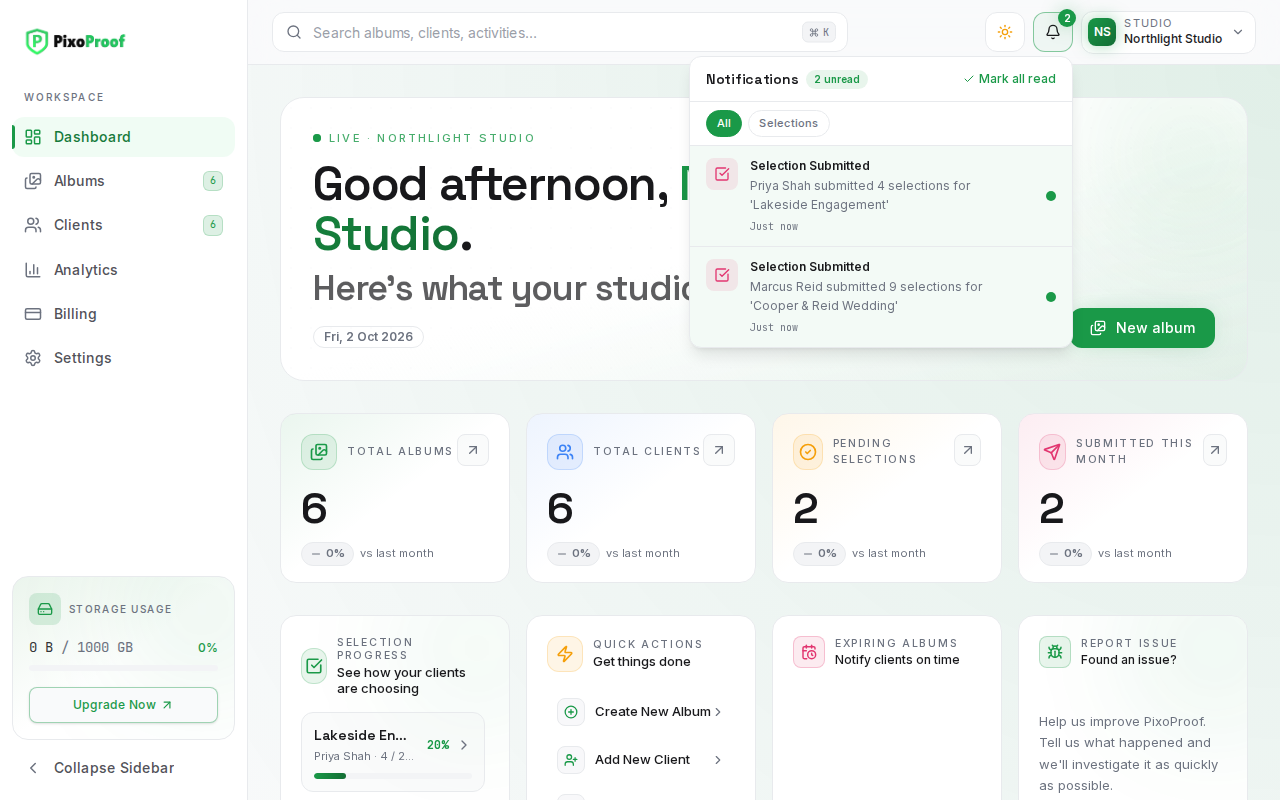
Controls in the Notification Center
- Notification Bell & Unread Counter: Displays a badge with the number of unread alerts. When new events arrive, the bell wiggles briefly to draw your attention.
- Event Feed Cards: Each alert provides contextual details categorized by color-coded tone:
- Primary (Green / Upload Icon): Confirms that background media uploads and thumbnail generations have finished processing.
- Warning (Amber / Download Icon): Alerts you when clients download photos, or when a gallery ZIP download fails.
- Info (Blue / User or Shield Icon): Signals client invitations (user icon) and screenshot detections (shield icon).
- Chart5 (Violet / CheckSquare Icon): Flags completed client selection submissions, signaling that proofing is ready for review.
- Category Filters: Pill-shaped filters directly under the header group the feed by event type (All, Uploads, Selections, Clients, Downloads, Security for screenshot alerts, and Other). Only categories with activity are listed. The filter resets to All each time you reopen the bell.
- Scrollable Feed: The feed scrolls when there are more alerts than fit in the popover; click Load older notifications at the bottom to fetch earlier alerts without leaving the page.
- Direct Navigation: Clicking any notification card automatically routes you directly to the relevant album or client workspace.
- Mark as read (Checkmark Icon): Clicking the checkmark on an individual notification marks that specific alert as read and removes the unread indicator dot.
- Dismiss (X Icon): Removes the notification card from your active feed.
- Mark all read: Located in the popover header next to the unread count; clears all unread badges simultaneously in one click.
- Live Updates Status: If the real-time connection drops, a banner explains that live updates are paused or that PixoProof is checking for new notifications every minute.
- Empty State: Displays "All caught up!" when there are no notifications to show.
Configuring Notification Preferences
To customize how and where you receive alerts, open Settings → Notifications.
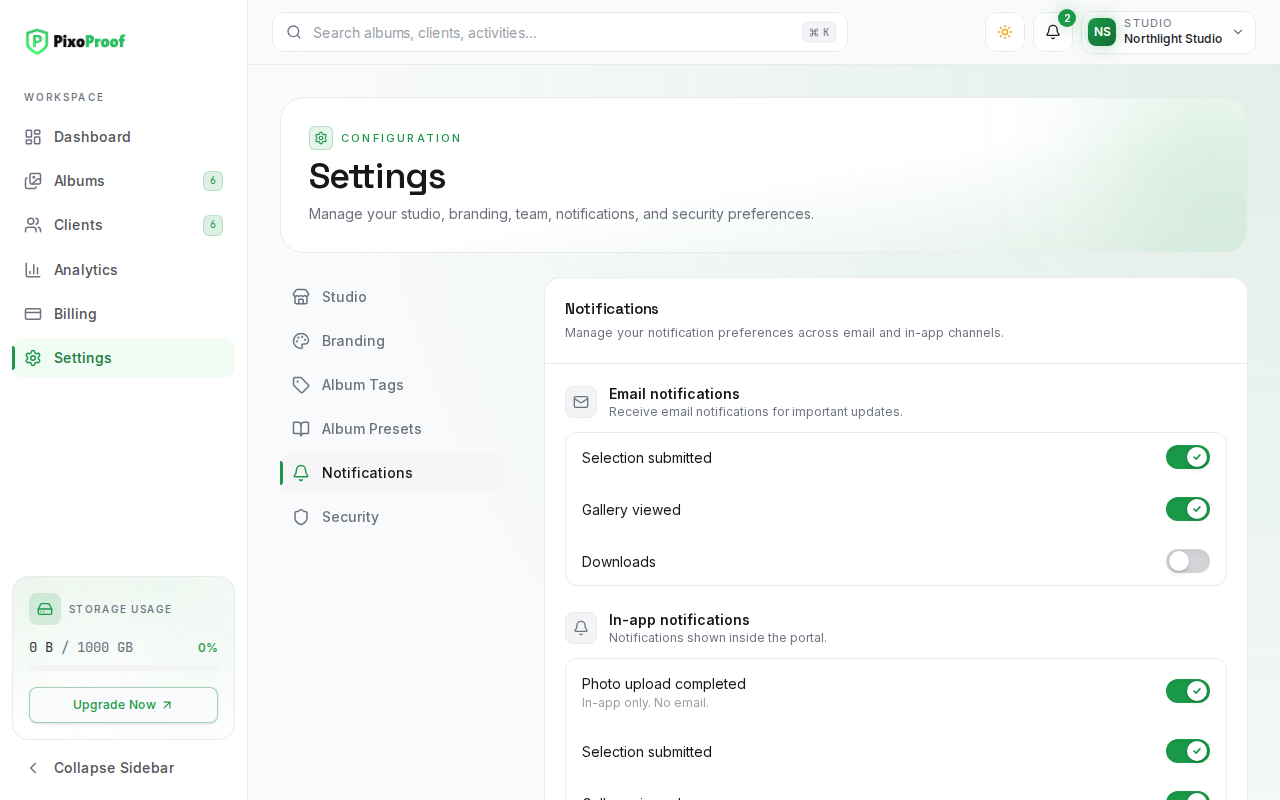
1. Email Notifications
The Email notifications group lists Selection submitted, Gallery viewed, and Downloads.
[!NOTE] These email switches are saved to your account, but they do not yet change which emails PixoProof sends. Today you always receive the selection submitted email when a client submits their selections; PixoProof does not currently send emails for gallery views or downloads.
2. In-App Notifications
The In-app notifications group controls what appears inside your top-bar Notification Center:
- Photo upload completed: Notifies you when batch uploads finish processing in the background. (In-app only. No email.)
- Selection submitted: Adds a selection alert to your in-app feed.
- Gallery viewed: Saved as a preference; gallery opens currently appear in your activity history rather than as bell notifications.
- Downloads: Adds download alerts (including failed ZIP downloads) to your feed.
- Client invited: Adds an alert when a client is invited to an album.
3. Alerts
The Alerts group lists Album about to expire ("Alert 7 days before gallery expiry"), Security alerts, and Marketing. These switches are saved to your account but do not yet change what PixoProof sends. Expiry reminder emails go to your clients according to each album's Reminder days before expiry setting, and you receive security emails such as new sign-in alerts and password change confirmations.
4. Desktop Notifications
- Desktop notifications Toggle: When activated, your browser requests permission to display native operating system push notifications. This allows you to receive instant alerts while working in other applications or editing photos in Lightroom.
- Permission Flow: A status line shows Desktop notifications: Enabled, Permission required, or Blocked by browser. If permission was previously blocked, the interface directs you to update your browser settings.
- This switch is remembered by the current browser only.
How Preferences Are Saved
Preferences in PixoProof save automatically in real-time. As soon as you flip any email, in-app, or alert switch:
- The setting persists immediately to the backend database.
- A confirmation toast appears: "Preference saved automatically."
- There is no need to manually find or click a "Save" button.
Practical Guidance for New Photographers
- Keep Selection Alerts Active: Even if you prefer minimal notifications, keep the in-app Selection submitted switch enabled. Submitted selections directly impact client delivery timelines.
- Leverage In-App Uploads: When uploading large weddings or multi-gigabyte shoots, feel free to navigate away or review other galleries. PixoProof processes media in the background and rings your notification bell when complete.