Review Client Selections
PixoProof Academy: How to Review Client Selections in PixoProof (View, Notes, Copy Filenames, Download)
When your clients favourite photos in their gallery, their picks appear in the album's Selections tab. From there you can see each client's favourite lists, read the notes they left on photos, export those notes as a CSV file, copy the file names into your editing software, and download the selected originals.
To open it, go to your album and click the Selections tab. The number next to the tab shows how many clients have favourite lists in this album.
Selection Summary
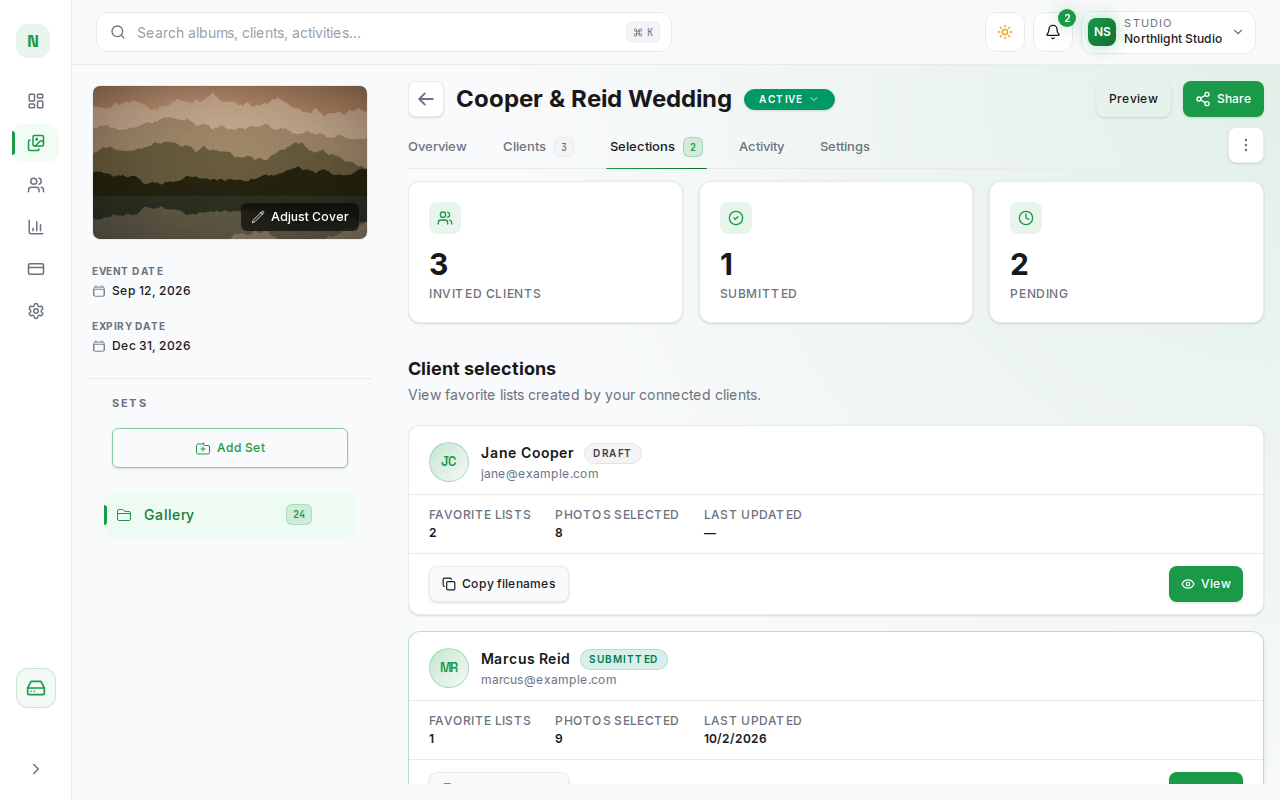
When at least one client is connected to the album, three cards appear at the top of the page:
- Invited clients — the number of clients connected to this album.
- Submitted — how many of them have submitted their selection.
- Pending — clients who have not submitted yet (clients whose access was revoked or has expired are not counted).
Client Cards
Below the summary, under Client selections, each client has a card showing:
- Their name and email address.
- A status badge: Submitted once they have submitted a list, or Draft while they are still choosing.
- Favorite lists — how many lists the client has. A client's first list, My Favorites, is created when they open the gallery, and they can add more lists to group their picks.
- Photos selected — the total number of photos across all of their lists.
- Last updated — the date of their most recent submission.
Until a client has a favourite list in this album, the page shows Nobody has connected to this gallery yet.
View a Client's Selection
Click a client's card, or its View button, to open their selection. The window shows:
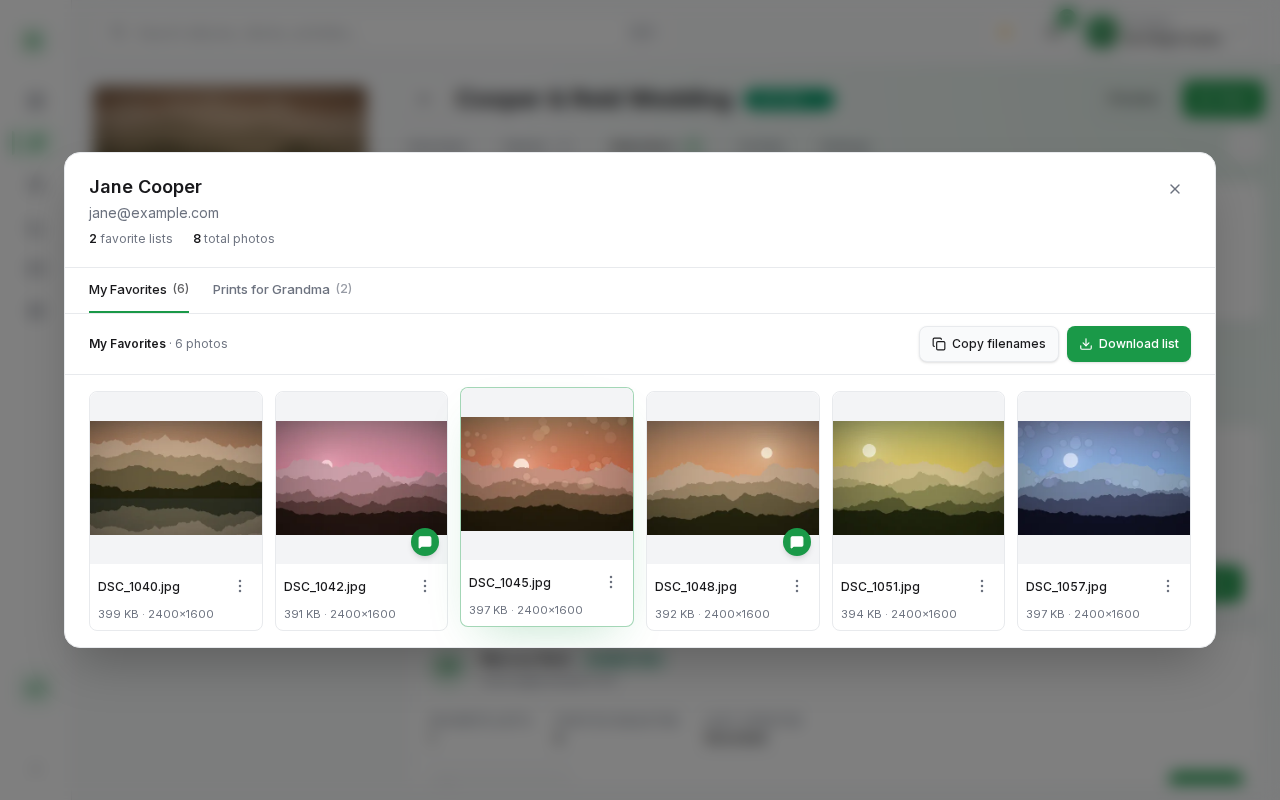
- The client's name and email, the number of favourite lists, and the total number of photos.
- A tab for each list (when the client has more than one), with the number of photos in each.
- The photos in the list you are viewing.
Double-click a photo to see it full size, or use its ⋮ menu to Open it, Download the original, or Copy filename. This view is read-only: you cannot change a client's selection from here.
Close the window with the ✕ button or the Esc key.
Client Notes
If you have turned on Allow Client Notes in the album's settings, clients can leave a note on any photo they favourite. Photos with a note show a speech-bubble icon in the bottom-right corner:
- Hover over the icon to read the note.
- Open the photo full size to see the note at the bottom of the screen, labelled Client Note.
Export Client Notes as a CSV File
Inside the selection window, click Export notes (next to Copy filenames) to download the client's notes for the list you are viewing. Open the file in Excel, Google Sheets or Numbers, or pass it to your editor as a retouching checklist.
The file is named after the list, for example My Favorites - notes.csv, and has two columns:
| Photo name | Client note |
|---|---|
| DSC_0142.jpg | Please remove the pole behind us |
| DSC_0157.jpg | Can you make this one black and white? |
- Only photos with a note are included, in the same order as in the list.
- The photo name is the photo's original upload file name, the same name Copy filenames uses, so you can find each photo in your editing software.
- Notes keep their commas, quotes, line breaks and non-English text.
- Export notes is greyed out when the client has not left a note on any photo in the list you are viewing. Switch tabs to export another list.
Copy File Names for Lightroom or Other Editing Software
You can copy the file names of a client's picks and paste them into the search or filter of your editing software (for example, a Lightroom text filter) to find the same photos in your catalogue.
There are two Copy filenames buttons:
- On the client's card — copies the file names from all of that client's lists.
- Inside the selection window — copies the file names from the list you are currently viewing.
Each opens a menu with two choices:
- Copy with extension — for example
DSC_0142.jpg, DSC_0157.jpg - Copy without extension — for example
DSC_0142, DSC_0157
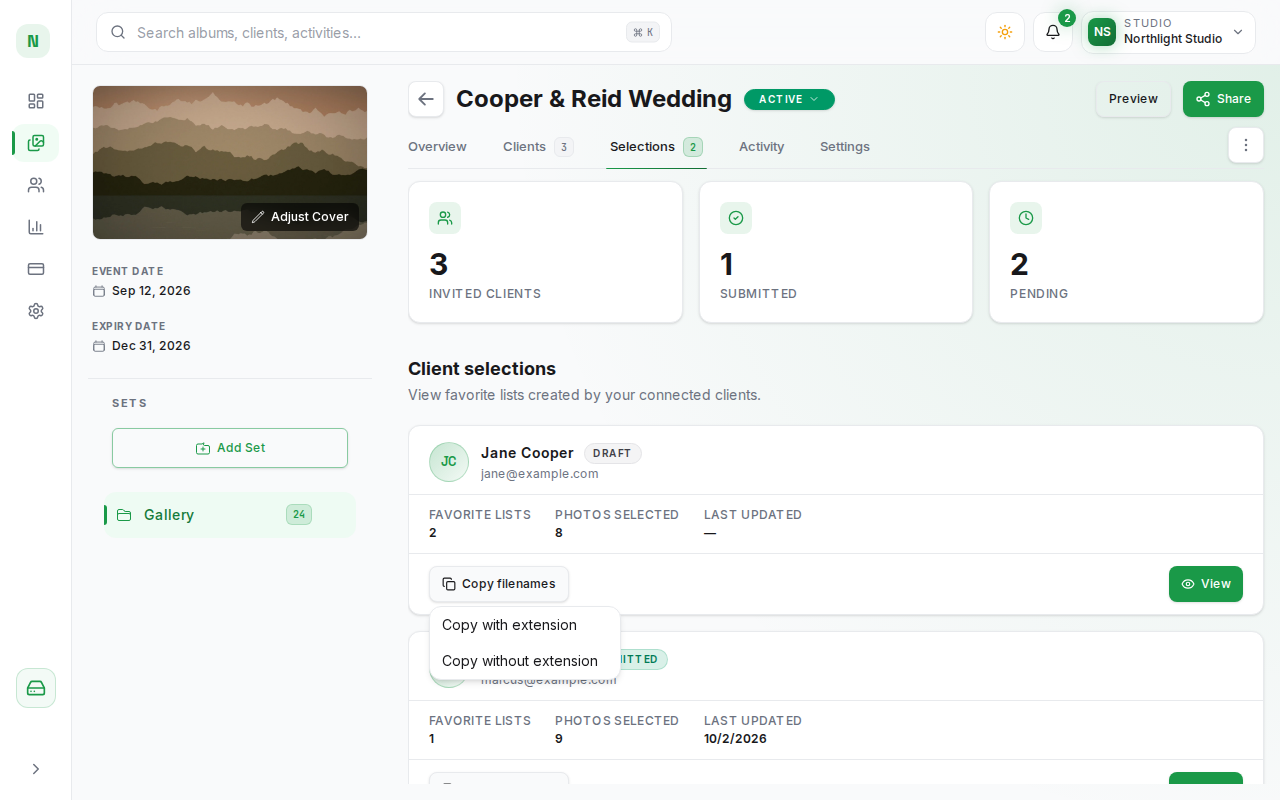
The names are separated by a comma and a space. PixoProof copies each photo's original upload file name, so the names match the files on your computer even if you renamed a photo in PixoProof afterwards.
Download a Client's Selection
Inside the selection window, click Download list to download the photos in the list you are viewing as a ZIP file named after the list. The ZIP contains the original, full-resolution files.
Letting a Client Change a Submitted Selection
Whether a client can change their picks after submitting depends on the album's Auto hide gallery after submission setting (in the album's Settings).
Auto hide off: clients can change their selection themselves
If you turned Auto hide gallery after submission off, the album stays Active after a client submits, and the client can keep changing their favourites. You don't need to do anything.
- After submitting, the client sees a note that they can still change their favourites.
- As soon as they add or remove a photo, or edit a note, their selection goes back to Draft: the client's card here shows Draft and the Submit favorites button comes back for them.
- When they submit again, the card shows Submitted and you get the usual email about the submitted selection.
Tip: If you have already started editing from a submitted list, check the client's card before you deliver. Draft means they are changing their picks.
Auto hide on: reactivate the album
With Auto hide gallery after submission on (the default), the album hides as soon as a client submits and their selection is locked. There is no Re-open button on the client's card. To let them change it, reactivate the album:
- Click the status badge next to the album name (it shows Hidden).
- Choose Active and confirm with Activate.
Clicking Share on a hidden album and choosing Activate and share has the same effect.
When an album goes from Hidden (or Expired) back to Active, every submitted selection in that album returns to Draft, so the client can un-favourite photos, pick new ones, and submit again.
- Reactivating reopens the submitted selections of all clients in the album, not just one. Clients who had already finished can simply submit again.
- PixoProof does not email the client when selections are reopened, so let them know they can make changes.