How to Edit an Album
Edit an album whenever event details change, shoot dates need updating, or you want to refine titles and descriptions for your clients.
Where to Find the Action
You can open the Edit Album dialog from two places in your dashboard:
- Albums Library View: On the main Albums page, click the overflow menu (•••) on any album card and choose Rename (in list view, the menu item is Edit Album).
- Album Workspace: Inside any album workspace (
/albums/[id]), click the action menu (⋮) located at the right of the navigation tab bar and select Edit.
Steps to Edit an Album
- Navigate to your Albums library or open the target album workspace.
- Open the action menu and select Rename, Edit Album, or Edit depending on where you are.
- The Edit Album modal opens with the current album information pre-populated.
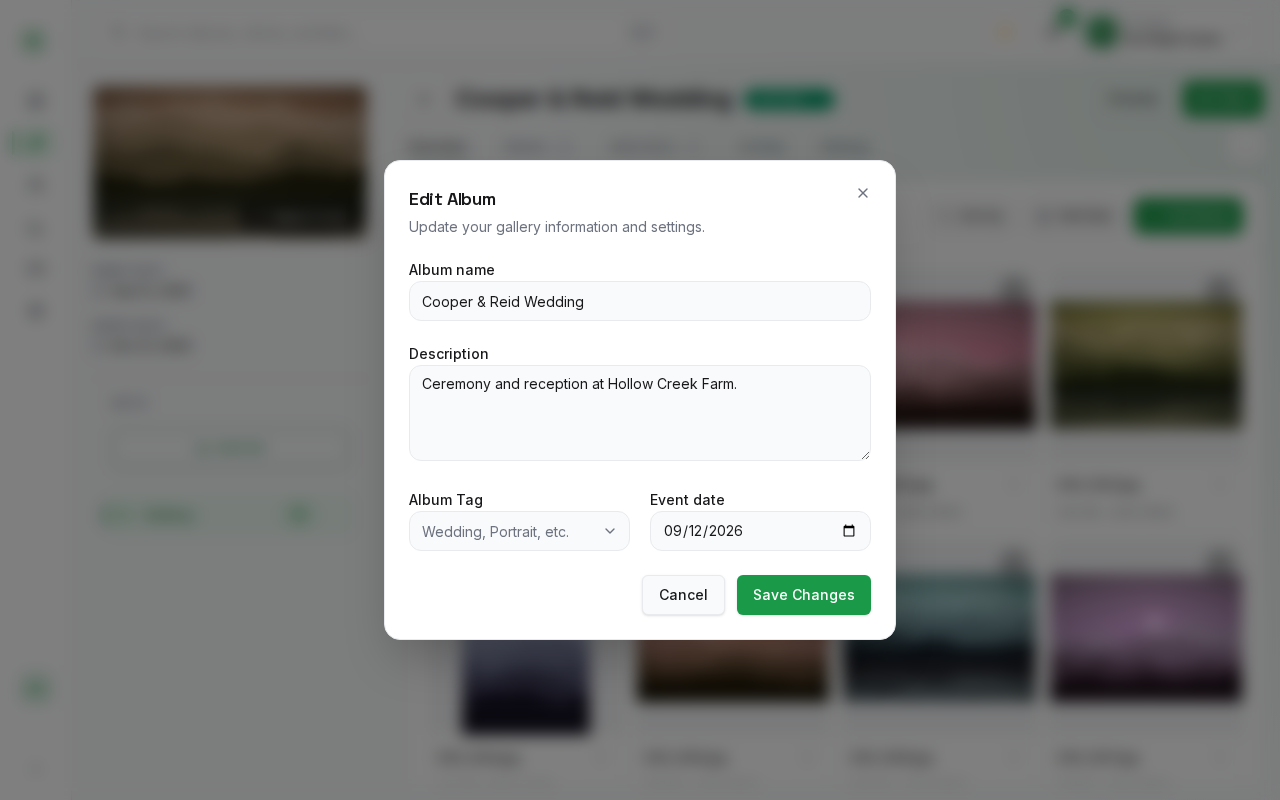
- Update the desired fields:
- Album name: The primary name of your gallery. This title appears across the photographer dashboard, client invitation emails, and the client gallery header. (Required)
- Description: An optional client-facing note or event summary. Use this to describe the event, package, or venue.
- Album Tag: Choose a shoot category (such as Wedding or Portrait), or type a new tag name to create it. Album tags categorize galleries and are included in album search.
- Event date: The date on which the event took place. Select a date using the calendar picker to maintain accurate timeline sorting.
- Click Save Changes to commit your updates.
What Happens After Saving
- Your changes are saved immediately to the database.
- A confirmation toast displays: "Album updated successfully."
- The dialog closes, and the updated album title and metadata immediately reflect in the workspace header and album lists.
Unsaved Changes Protection
If you modify any field in the edit form and attempt to close the dialog by clicking Cancel, the ✕ button, or the backdrop, PixoProof safeguards your work with a confirmation dialog:
- Discard changes? "You have unsaved changes. Are you sure you want to discard them? Any changes you made will be lost."
- Click Keep editing to return to your changes, or click Discard to exit without saving.
Practical Use Cases
- Correcting Names: Update client or couple names if typos are spotted after initial gallery setup.
- Categorization: Assign an Album Tag to a shoot so it can be found by searching the Albums page.
- Shoot Rescheduling: Adjust the event date if an engagement session or wedding date was moved.