Upload Photos
Upload photos securely to your album. Your originals are stored untouched; when clients view them, PixoProof applies watermarks on the server and enforces download restrictions based on your album settings.
Steps to upload photos
- Open your album in the dashboard. By default, you will be on the Overview tab, showing the photos of the selected photo set.
- Click the Add Media button in the top right of the gallery area.
- Select the images you want to upload from your computer. JPEG, PNG, WebP, and HEIC files up to 500 MB each are accepted.
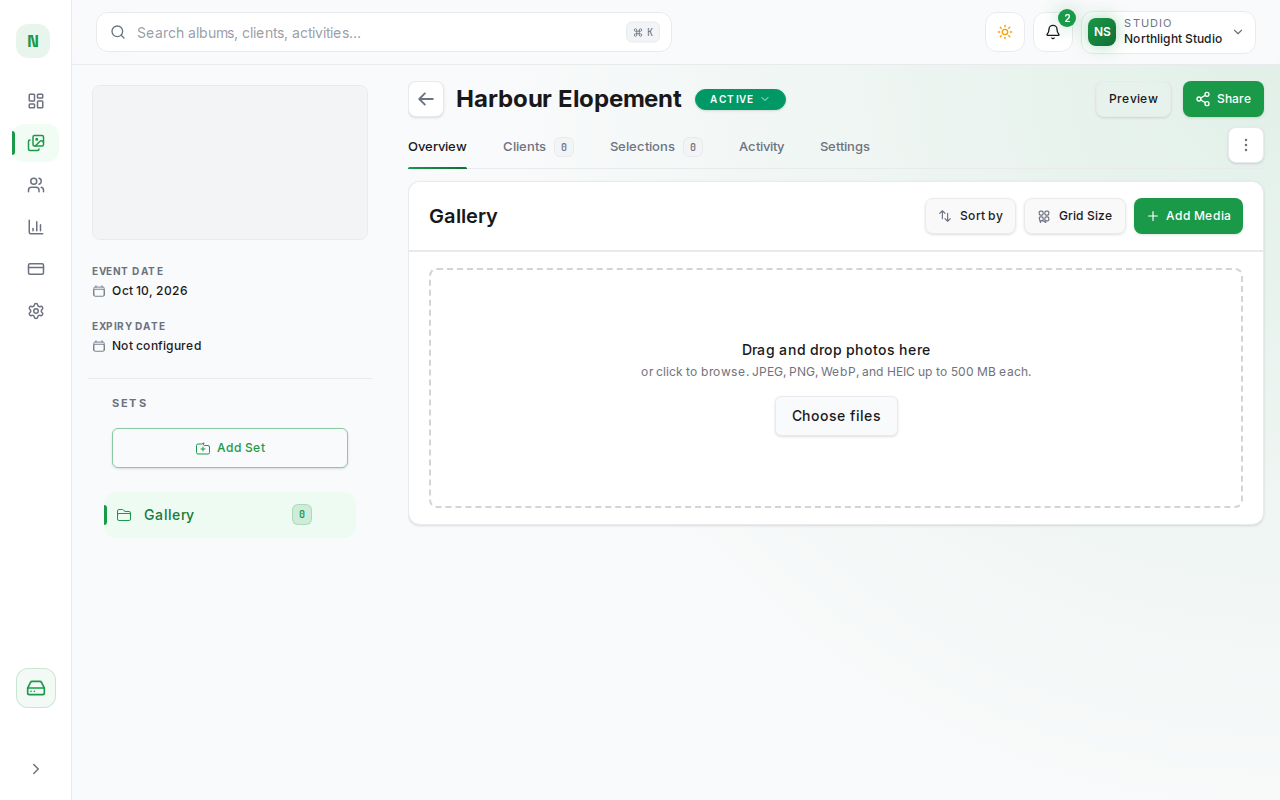
Alternatively, when the photo set is empty, you can drag and drop your photos onto the Drag and drop photos here area to begin uploading immediately.
If any selected files already exist in the album (or were selected twice), a Duplicate photos detected dialog lets you choose Skip Duplicates or Replace Existing.
- Upload progress is shown in the upload manager, and photos will appear in your gallery automatically as they finish processing. You can keep working in other pages while uploads continue.