Share Gallery
PixoProof Academy: How to Share a Gallery and Invite Your Client in PixoProof (Email & WhatsApp)
Once your photos are uploaded, share the secure gallery link and PIN with your clients. There are two ways to share a gallery:
Option 1: Share the overall gallery link
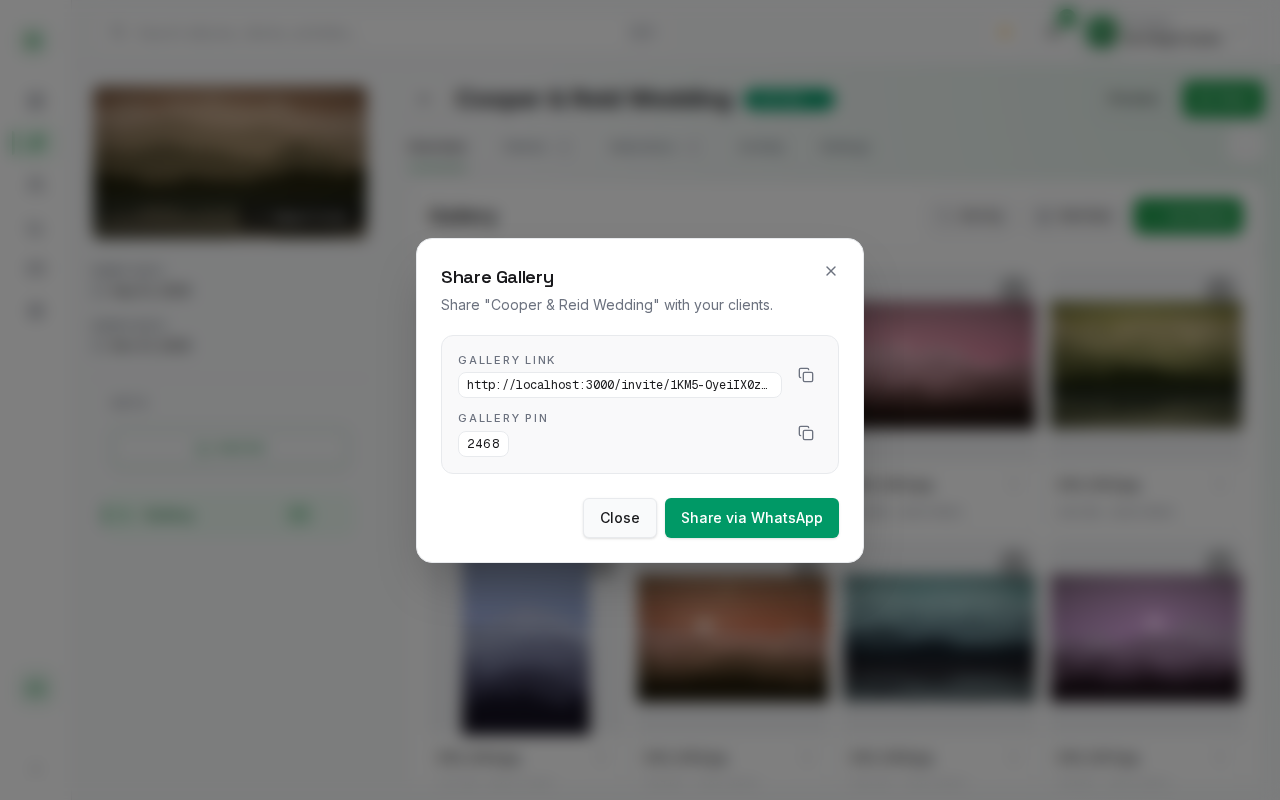
Use this option to quickly copy the gallery link or share via WhatsApp.
- Open your album in the dashboard.
- In the top right corner, click the Share button. (Note: A new album that has never been activated shows Activate instead; click it first. If the album is Hidden, clicking Share asks you to confirm Activate and share. Sharing is unavailable for archived or expired albums.)
- In the Share Gallery dialog, you can copy the Gallery link or Gallery PIN, or click Share via WhatsApp.
Option 2: Share directly with a specific client
Use this option to send an automated email invitation to a connected client. Every client of an album uses the same gallery link and PIN.
- Navigate to the Clients tab inside your album.
- Locate the connected client in the list.
- Click the Share button on their row. The Share Gallery dialog opens. (Connecting a new client opens this dialog automatically.)
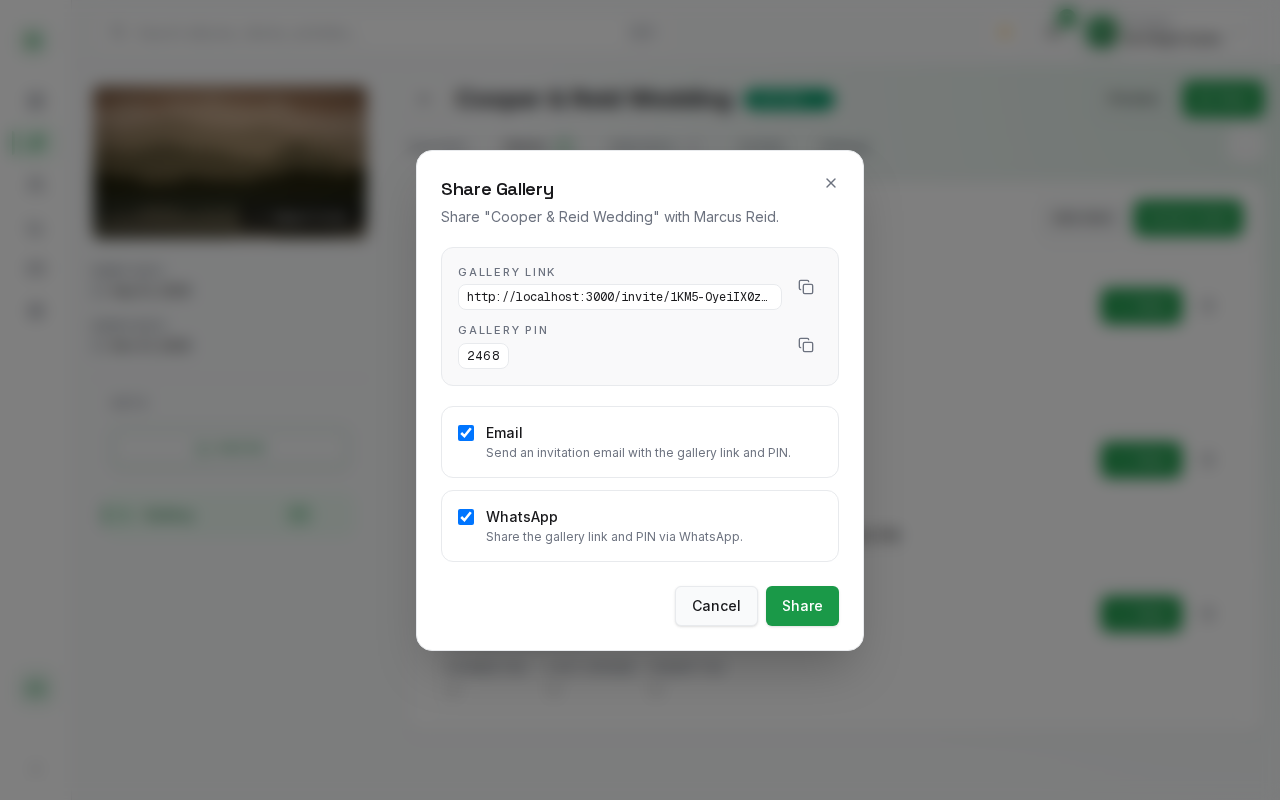
- Choose to send the invitation via Email, WhatsApp, or both (both are ticked by default).
- Click Share. The email option sends the gallery link and PIN automatically; the WhatsApp option opens a pre-filled WhatsApp message.