Gallery Status (Active and Hidden)
Every album has a status that decides whether your clients can open the gallery. You can see and change it next to the album name at the top of the album workspace.
The Statuses
| Status | What it means |
|---|---|
| Hidden | Clients cannot open the gallery. New and duplicated albums start hidden, and an album can hide itself after a client submits their selection. |
| Active | Clients you have shared the gallery with can open it. |
| Expired | The gallery passed its expiry date and clients can no longer open it. |
| Archived | The album has been archived (see How to Archive an Album). |
Your photos, clients, and selections are kept in every status — only client access changes.
Activate a Gallery
When an album has never been activated, an Activate button appears in the top-right corner of the workspace.
- Click Activate (or click the status badge next to the album name and choose Active).
- In the Ready to Activate? dialog, click Activate.
The gallery is now Active and the Share button appears so you can send it to your clients (see Share Gallery).
Hide a Gallery
To stop clients from opening an active gallery without deleting anything:
- Click the status badge next to the album name (it shows Active).
- Choose Hidden.
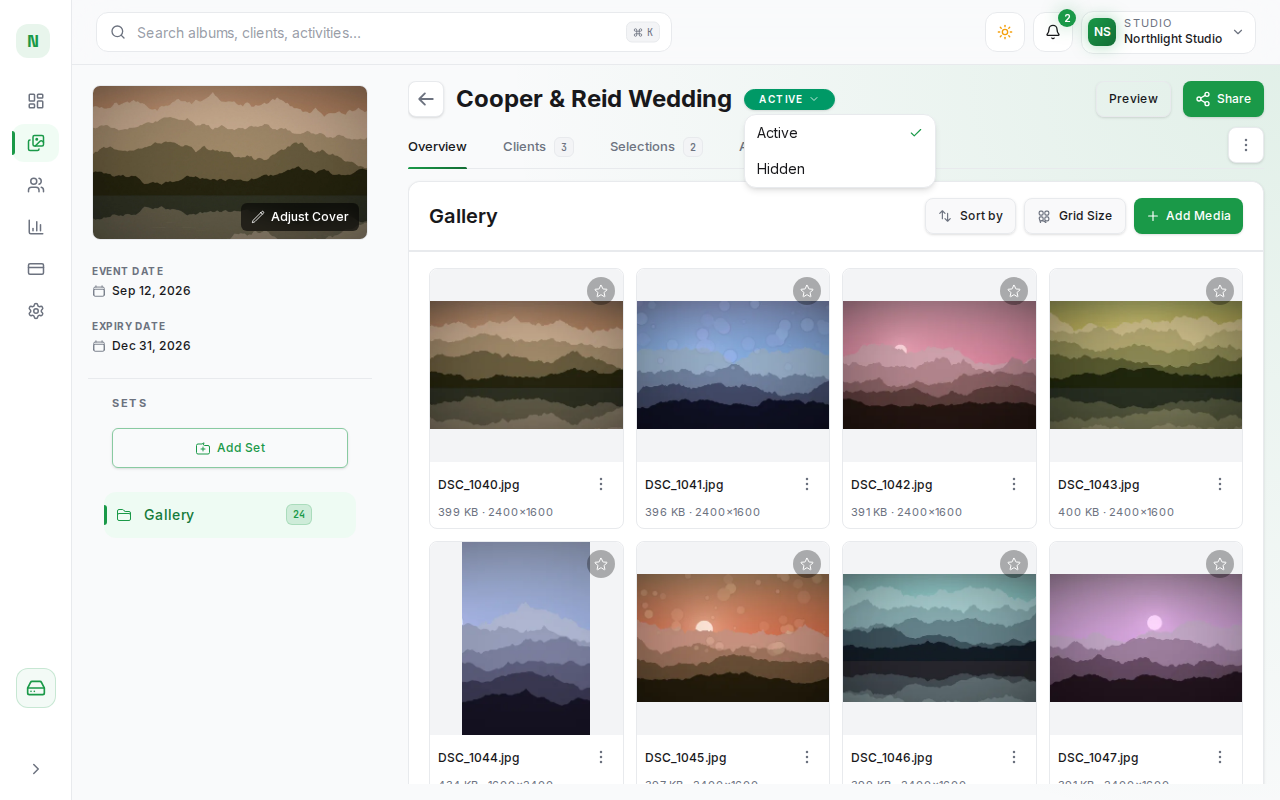
The change happens straight away. Clients who try to open the gallery can no longer get in until you make it active again.
Make a Hidden Gallery Active Again
- Click the status badge (it shows Hidden) and choose Active, then confirm with Activate.
- Or click Share and confirm with Activate and share to reactivate and go straight to sharing.
When a gallery goes from Hidden back to Active, any selections your clients had already submitted in this album are reopened, so clients can change their picks and submit again. (If Auto hide gallery after submission is off, the album stays Active and clients can change a submitted selection themselves.) See Review Client Selections.
Expired Galleries
When a gallery passes the expiry date set in its Settings, its status becomes Expired and the Share button is disabled. To give clients access again, click the status badge and choose Active (or Hidden to keep it closed for now). Doing so clears the expiry date, so remember to set a new one in the album's Settings if you still want the gallery to expire. Reactivating an expired gallery also reopens any submitted selections.
Preview Without Activating
You do not need to activate a gallery to check how it looks. Click Preview at any time to see it as a client would (see Preview the Gallery as a Client).