Managing Album Tags
Album tags label your albums by the kind of shoot, such as Wedding or Birthday. You choose a tag when you create an album, and an album preset can set one automatically.
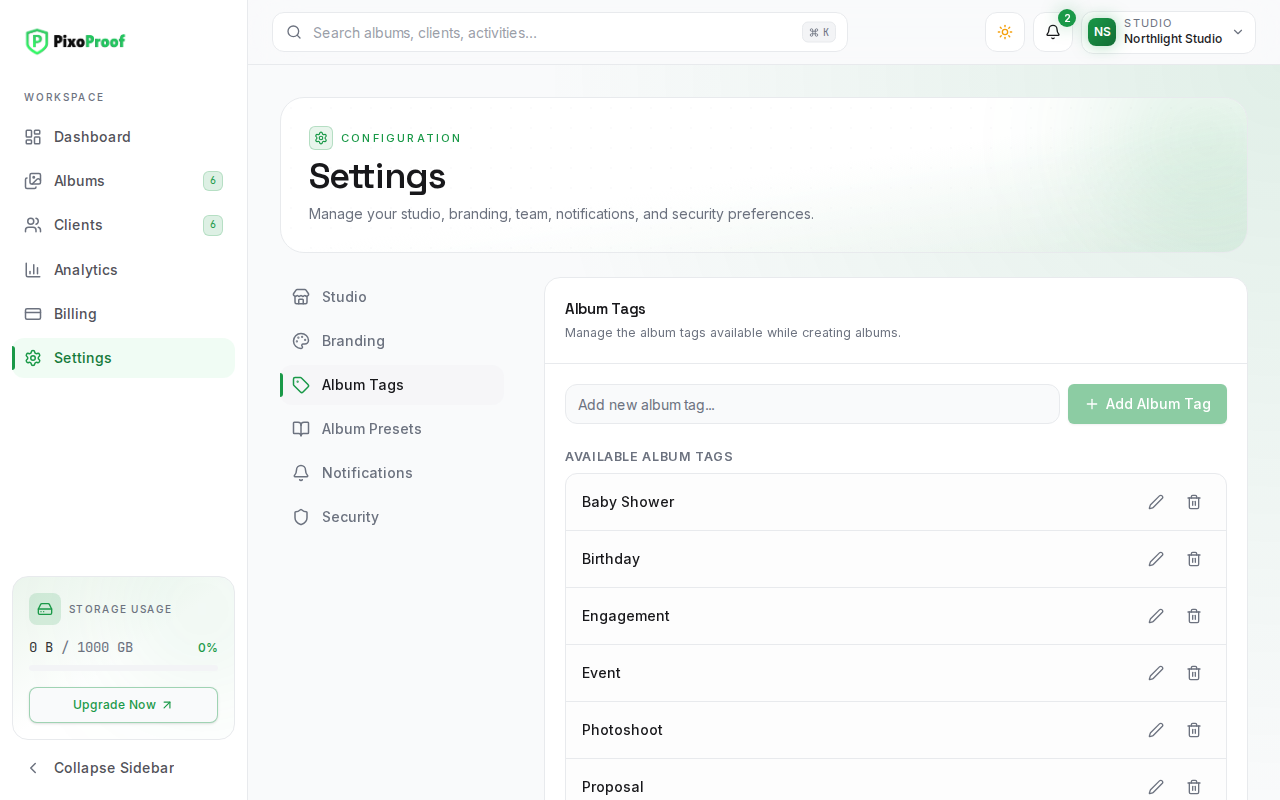
Where to Find Album Tags
- In the left sidebar, click Settings.
- In the settings menu, select Album Tags.
The Available Album Tags list shows every tag you can choose from. New accounts start with these tags: Birthday, Engagement, Wedding, Baby Shower, Proposal, Event, and Photoshoot.
Adding a Tag
- Type the name into the Add new album tag... field.
- Click Add Album Tag. You will see "Album tag added successfully."
You can also create a tag on the fly while creating an album: type a new name into the Album Tag field and choose Create "…" from the suggestions.
Naming Rules
- Up to 30 characters and up to 4 words.
- Letters, numbers, spaces, hyphens (
-), apostrophes ('), and ampersands (&) only. - Must contain at least one letter or number.
- Must be unique. Names are compared without regard to capitals, so wedding and Wedding count as the same tag.
- Extra spaces are removed automatically.
Renaming a Tag
- Click the pencil icon next to the tag.
- Edit the name.
- Click the checkmark to save, or the X to cancel. You will see "Album tag updated."
Deleting a Tag
- Click the trash icon next to the tag.
- In the Delete Album Tag window, click Delete.
A tag that is used by any of your albums, including archived ones, cannot be deleted; you will see an error explaining that it is in use. Change those albums to a different tag first, or keep the tag.
Deleting a tag cannot be undone, but you can always add a tag with the same name again.