How to Connect a Client to an Album
Connecting a client grants that person permission to unlock and view a specific album. In PixoProof, albums and client directories are decoupled: connecting adds a directory client to the album's client list so you can share with them and track their activity. (A person who opens the gallery link and enters the correct PIN is also added to the list automatically.)
Where to Find the Action
You can manage connected clients from within any album workspace:
- Open your album (e.g.
/albums/[id]) and click the Clients tab in the album navigation bar.
Steps to Connect a Client
- Open your target album and select the Clients tab.
- In the Connected clients card header, click the Connect client button (the Add client button next to it creates a new directory contact).
- The Connect client to album dialog appears.
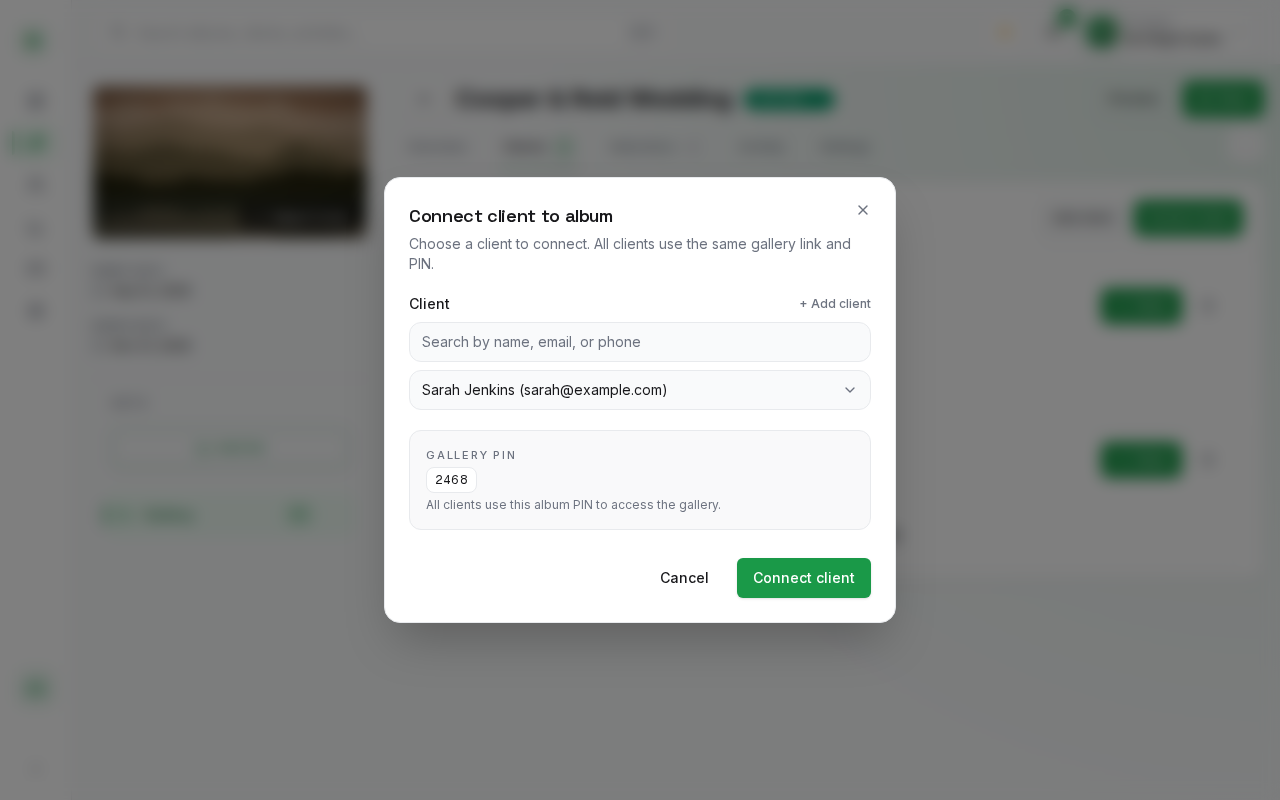
- Open the Client selector and choose the client you wish to authorize from your directory. Use the search box above it to filter by name, email, or phone.
- Tip: If the client has not been added to your studio directory yet, click + Add client above the selector to create their contact record on the fly without leaving the album.
- Review the Gallery PIN displayed inside the dialog. Every client connected to this album uses this same album PIN and gallery link to authenticate.
- Click Connect client to confirm authorization.
What Happens After Connecting
- An authorization record is established between the album and client.
- The dialog closes, the client appears in the album's Connected clients list, and the Share Gallery dialog opens so you can send the invitation. Connecting alone does not notify the client.
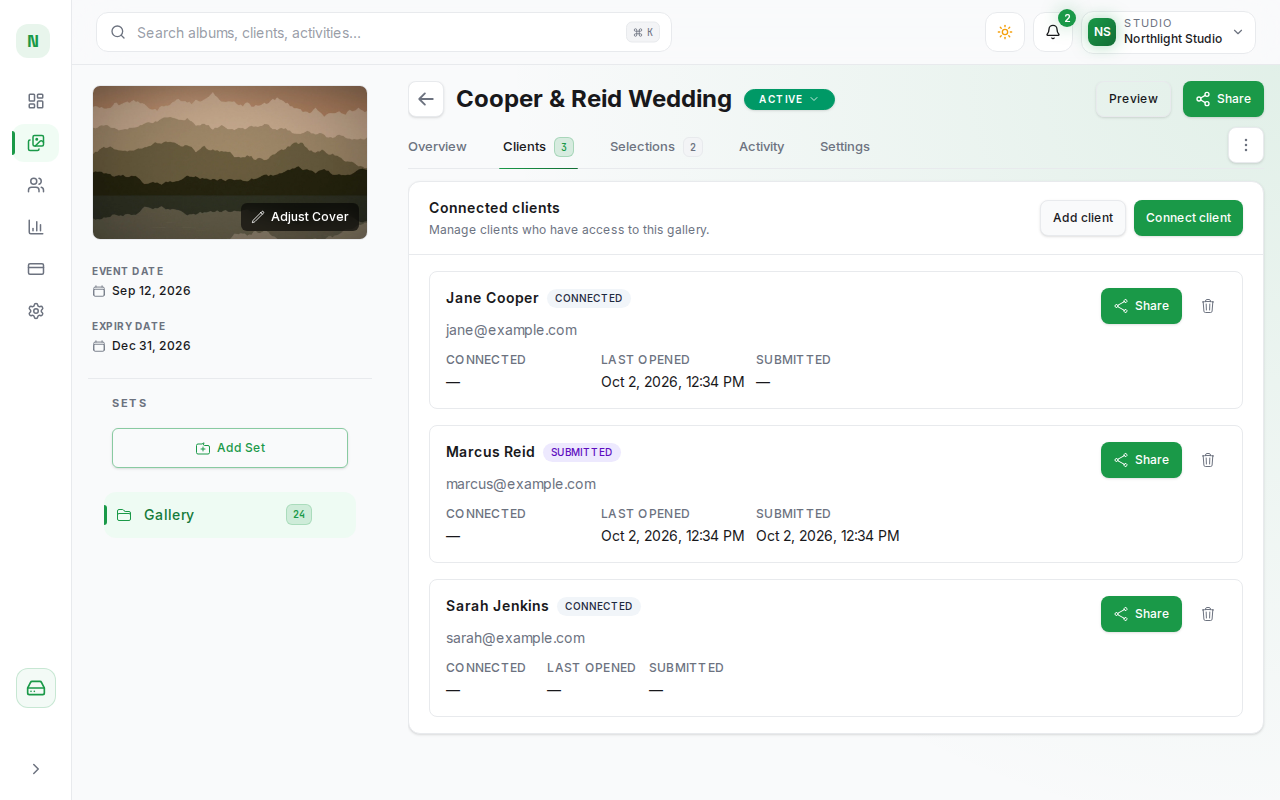
- The connected client row displays:
- Status Badge: Shows Connected, then Invited, Opened, or Submitted as the client progresses (or Expired / Revoked).
- Activity Tracking: Shows the Connected / Invited date, Last opened, and Submitted dates.
- Share Button: Allows you to send an automated invitation email or share credentials via WhatsApp.
- Remove (trash icon): Asks you to confirm Remove client, then revokes access for this client on this album immediately. Other albums are not affected.
Connecting Multiple Clients to One Album
PixoProof supports connecting multiple clients to a single gallery. Common practical use cases include:
- Weddings: Connect both partners individually so each can view and favorite photos from their own device. Each connected client makes and submits their own selections.
- Family Sessions: Connect multiple family members or parents to allow shared proofing while tracking each individual's viewing activity.
- Commercial Projects: Authorize both the creative director and the marketing coordinator under one gallery project.