How to Manage Passwords, Sessions & Account Security
Protecting high-resolution client media begins with securing the photographer account. PixoProof provides direct security controls to manage your sign-in credentials, monitor active logins across all your devices, and instantly revoke unauthorized sessions.
Where to Find Security Settings
- In the left workspace sidebar, click Settings.
- In the settings navigation sidebar, select the Security tab.
Security Overview & Controls
The Security settings view is organized into dedicated control panels.
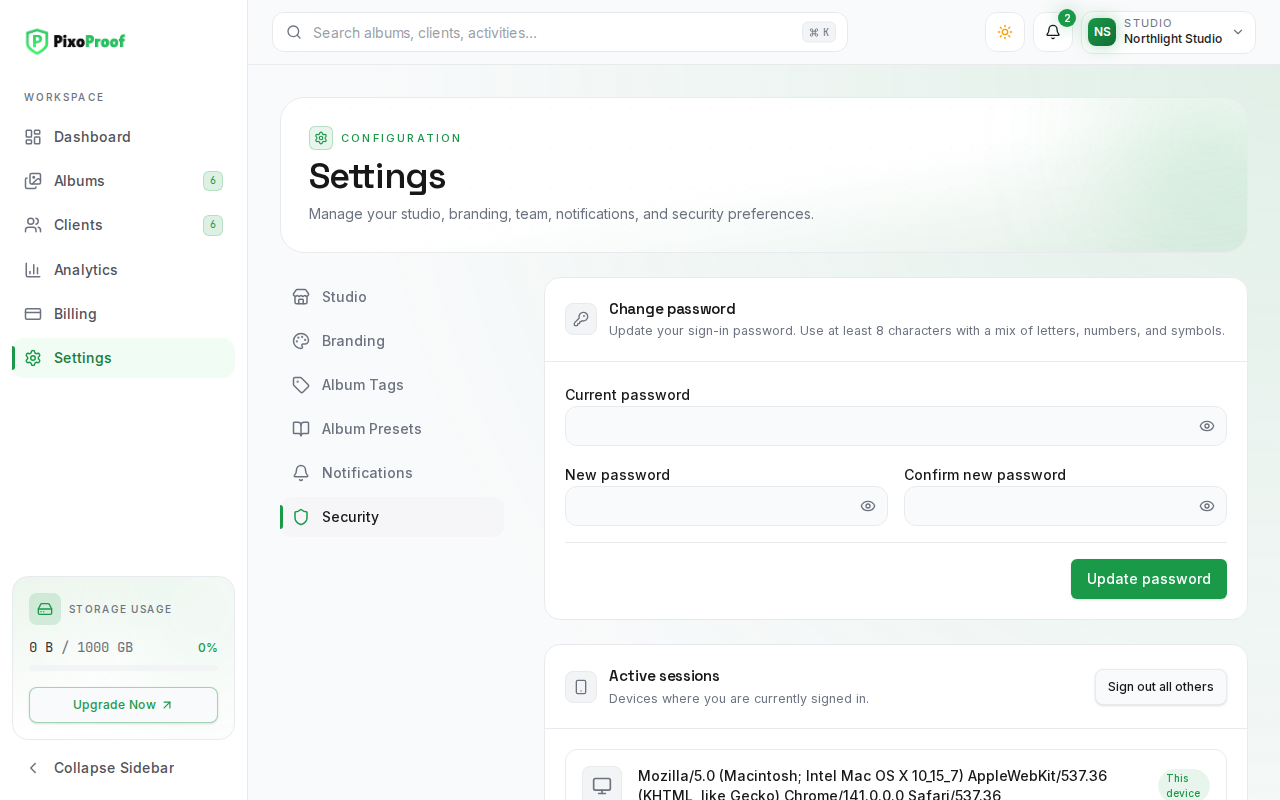
1. Change Password
Maintain strong account security by updating your master password periodically or whenever you suspect unauthorized access:
- Current password: Type your existing password to authenticate the change request.
- New password: Enter your proposed new password. It must be at least 8 characters and different from your current password; mixing letters, numbers, and symbols makes it stronger.
- Password strength: As you type, a strength indicator evaluates complexity in real time (Weak, Fair, Good, Strong).
- Confirm new password: Re-enter your new password to verify there are no typographical errors.
- Update password Button: Submits the password update.
- Upon submission, PixoProof validates the current password, updates the secure cryptographic hash, and displays a confirmation: "Password updated successfully." Every other browser and device is signed out at the same moment, and any password-reset link you requested earlier stops working. The session you are using stays signed in.
- If the current password was incorrect or the new password does not satisfy complexity policies, an explanatory error alert is displayed immediately.
2. Active Sessions Management
PixoProof tracks every authenticated browser or mobile device where your photographer account is actively signed in:
- Browser and operating system: Each session shows the browser and operating system it signed in from (e.g.,
Chrome on Windows,Safari on iOS). The raw browser identifier is not displayed. - Approximate location: A city-level estimate derived from the network address, shown as "Approximate location: ...". If it cannot be determined, the card shows "Location unavailable".
- IP Address: Shows the network IP address from which the device accessed the studio.
- Signed in / Last active: Displays when the session started and when it was last used.
- Status badges: Your current session carries a This device badge so you do not accidentally terminate your current workspace. Other sessions are tagged New device when PixoProof had not seen that browser or device on your account before, or Recognized when it had.
- Individual Revocation ("Sign out"): Located on secondary device cards. Clicking Sign out revokes that specific session immediately, forcing that browser back to the login screen.
- Sign out other sessions: Shown in the Active sessions card header whenever other sessions exist. After you confirm, every other session is signed out while this device stays signed in.
- Sign out everywhere: Signs out every session, including this one, and returns you to the sign-in page. A confirmation reminds you that you will be signed out here too.
New sign-in emails: When you sign in from a browser or device PixoProof has not seen on your account, we email you a security notice with the approximate location and a link to Settings > Security so you can review and revoke sessions. These emails are always on and cannot be turned off in notification preferences.
3. Signing Out of Your Account
You can securely log out of your workstation from anywhere in the platform:
- Click your studio avatar or profile card in the upper-right corner of the top bar.
- Click Sign out at the bottom of the dropdown menu.
- A Logout? confirmation dialog appears: "Are you sure you want to logout from your account?"
- Clicking Logout clears your stored access and refresh tokens from memory and redirects you cleanly to the sign-in page.
4. Roadmapped Security Features (Feature Status)
To keep photographers informed about upcoming security capabilities, PixoProof lists roadmapped safeguards in the Account security card on the Security page:
- Two-Factor Authentication (2FA): Time-based one-time password (TOTP) authenticator app support. (Status: Coming soon)
- Recovery Codes: Downloadable emergency single-use backup codes. (Status: Coming soon)
Practical Security Guidance for Photographers
- Unique Credentials: Never reuse passwords between your client galleries and your master photographer account. Your photographer account holds administrative privileges over all client sets and billing settings.
- Studio Assistant Workstations: If you log into PixoProof on a temporary studio laptop or assistant computer during a shoot, navigate to Active Sessions when you return to your desk and revoke that session.