How to Manage Your Studio Profile & Settings
Your Studio Profile establishes your professional presence throughout PixoProof. Your studio name appears in client galleries, invitation messages, and studio-name watermarks; your logo and brand color are managed separately on the Branding tab.
Where to Find Studio Settings
- In the left workspace sidebar, click Settings.
- By default, the Studio tab is selected (or click Studio in the settings navigation list, which also includes Branding, Album Tags, Notifications, and Security). Album presets and email templates are in Templates in the left sidebar.
Studio Profile Overview & Controls
The Studio Settings screen allows you to manage both your account identity and customer-facing business details.
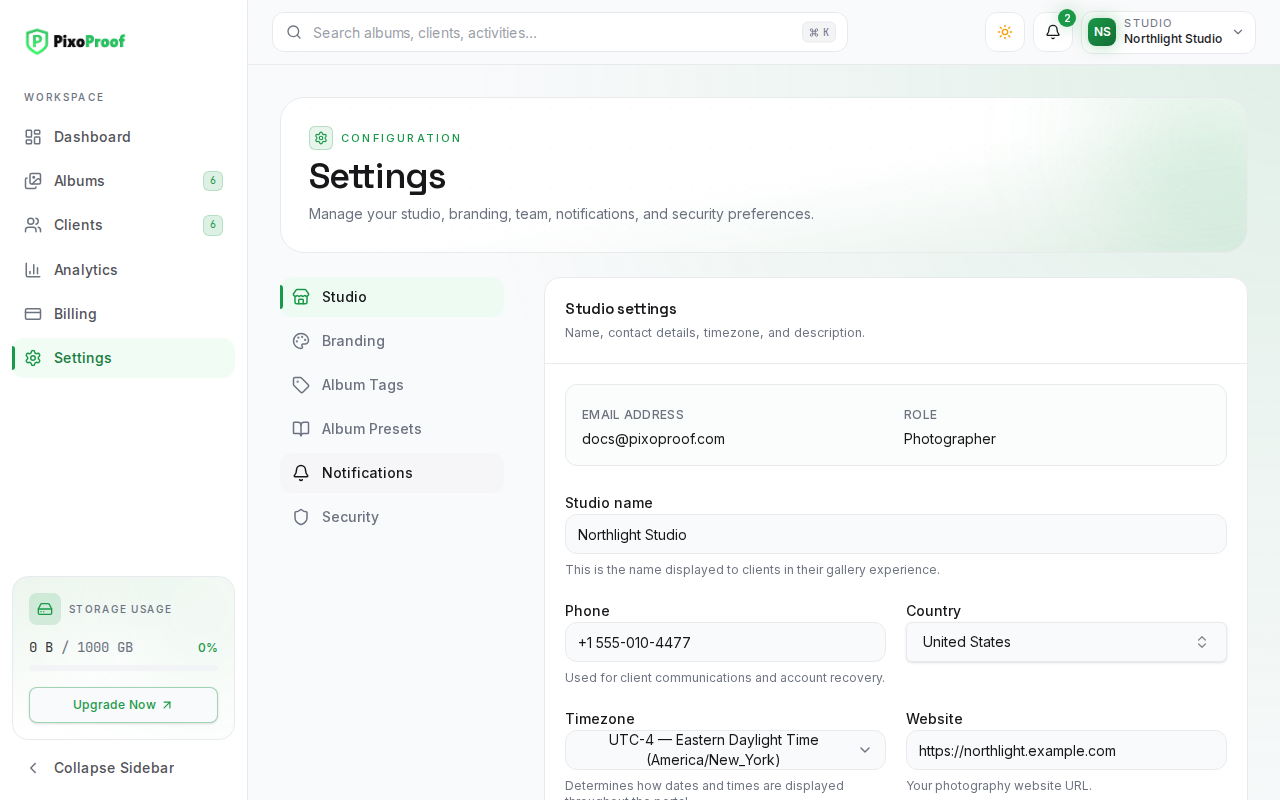
1. Account Identity (Read-Only)
Displayed at the top of the form in an informational panel:
- Email address: The primary sign-in email associated with your PixoProof photographer account. Used for billing invoices, system alerts, and authentication.
- Role: Displays your account authorization level (e.g.,
Photographer).
2. Studio Configuration Fields
- Studio name: The official name of your photography business (e.g.,
Northlight Studio).- Where it appears: Displayed in the top bar's profile menu, in client galleries, within email and WhatsApp invitations, and on watermarks when the Studio name stamp is enabled.
- Requirement: Required.
- Phone: Your primary business contact number, formatted with international country code (e.g.,
+1 (555) 019-4829).- When to use: Stored for your studio records.
- Country: A searchable country selector.
- When to use: Records your studio's operating country.
- Timezone: A comprehensive dropdown list displaying UTC offset and timezone name (e.g.,
UTC-04:00 — Eastern Daylight Time (America/New_York)).- Why this matters: Album expiry dates are applied in this timezone, so a gallery set to expire on a date closes at the end of that day in your studio's local time rather than the server's.
- Website: Your official portfolio or studio website address (e.g.,
https://janephotography.com).- Where it appears: Saved with your studio profile; client galleries and invitations do not currently display it.
- Description: A brief introduction or biography describing your studio's focus, style, and philosophy.
- Where it appears: Saved with your studio profile; client galleries do not currently display it.
Saving Your Profile
- Make the desired adjustments to your studio details.
- Click the Save studio settings button at the bottom of the form.
- Upon successful saving:
- Your updated profile is stored in the database.
- A confirmation toast appears: "Studio settings saved."
- Any client-facing gallery opened afterwards reflects the new studio name.
Practical Guidance for New Photographers
- Choose a Recognizable Studio Name: Use the exact business name your clients recognize from your contracts and social media. When clients receive an invitation link or open a gallery, seeing your established branding immediately instills trust.
- Set Timezone Accurately: If you travel for destination shoots, keep your studio timezone set to your primary business location so gallery expiry dates remain consistent.