How to Add a Client to Your Directory
The Client Directory serves as your central contact book in PixoProof. Maintaining client profiles in your directory allows you to quickly connect contacts across multiple shoot galleries over time.
Where to Find the Action
Access your studio client directory from the main dashboard:
- In the left workspace sidebar, click Clients to navigate to
/clients.
Steps to Add a Client
- Navigate to Clients from your dashboard sidebar.
- Click the Add client button in the top right corner of the header.
- The Add client modal opens.
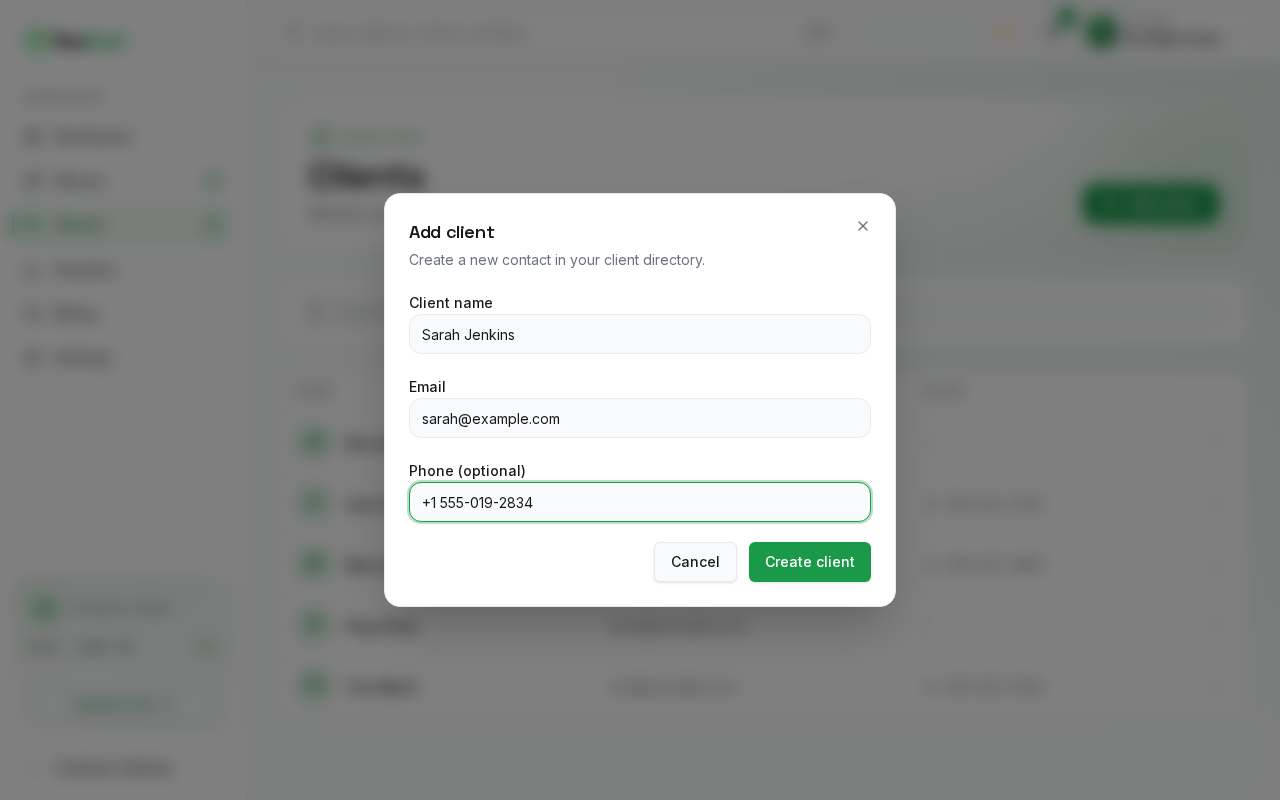
- Complete the contact fields:
- Client name: The full display name of your client or couple (e.g.,
Sarah Jenkins). This name appears on gallery headers, welcome cards, and watermark stamps if client name watermarking is activated. (Required) - Email: The primary email address for the client (e.g.,
[email protected]). This is the client's sign-in identifier: the client enters their email along with the album's Gallery PIN to access their gallery. (Required) - Phone (optional): A contact number, ideally with country code. Used for studio records and is searchable in your directory.
- Client name: The full display name of your client or couple (e.g.,
- Click Create client to save.
What Happens After Creation
- The client profile is saved to your studio's database.
- A confirmation toast appears: "Client created successfully."
- The dialog closes, and the client immediately appears in your directory table with their avatar initials, email address, and phone number.
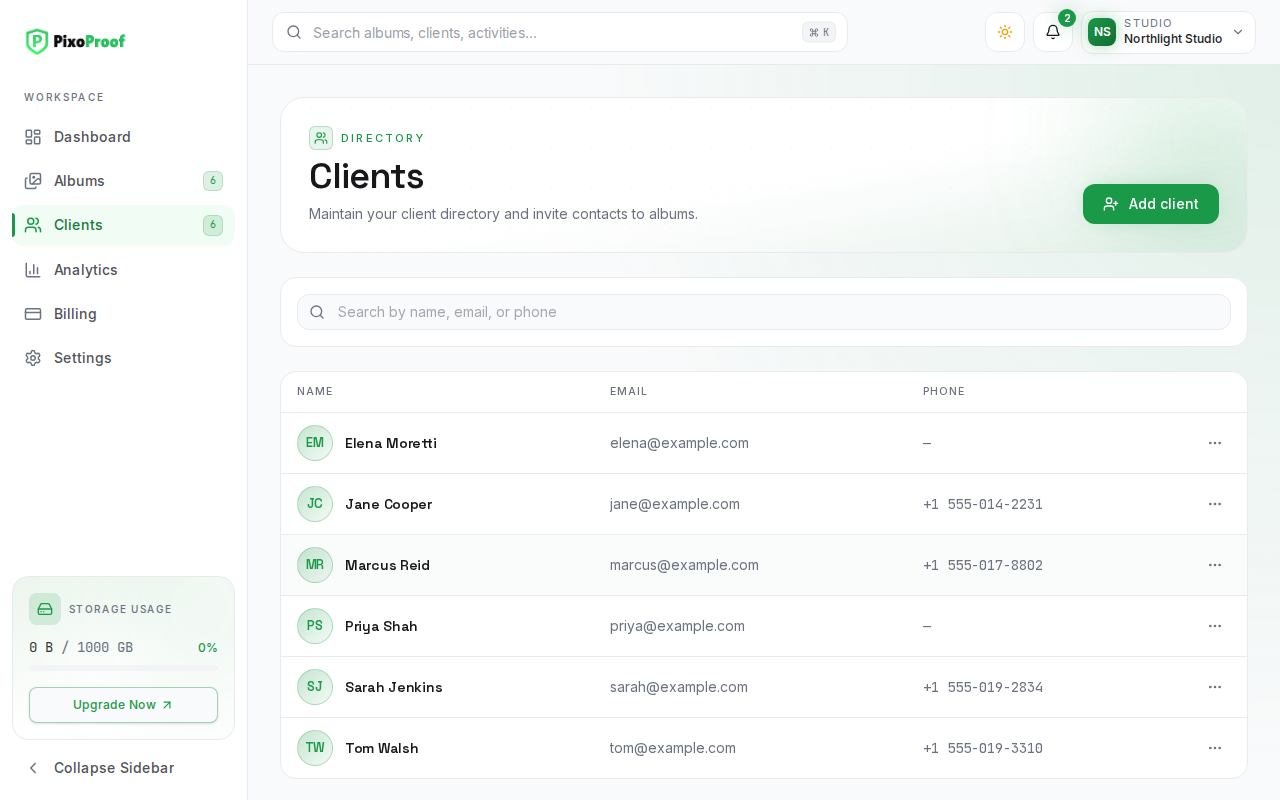
- The client is now registered in your studio directory and ready to be connected to any album now or in the future. Use the row's actions menu to Edit or Delete the contact later.
Practical Guidance for New Photographers
- Early Setup: Add your clients to the directory as soon as they sign a contract or book a session. When you are ready to upload their photos later, connecting them takes just a single click.
- Email Accuracy: Ensure client email addresses are entered without typos. If a client opens the gallery link and signs in with a different email (and the correct PIN), PixoProof treats it as a new client: a separate directory entry is created and their activity and selections are tracked under that email instead.
- Multiple Contacts: If working with couples, families, or corporate teams, add each key stakeholder as a separate client in your directory so each person can have their own gallery access and activity tracking.