How to Manage Your Subscription, Storage & Billing Plans
The Billing & Plans module is where photographers monitor studio resource consumption, inspect their active subscription tier, compare available upgrades, and review past invoices.
Where to Find Billing Settings
- In the left workspace navigation sidebar, click Billing.
- The main Billing & Plans overview page opens immediately at
/billing.
Current Subscription & Resource Utilization
The top section of the Billing screen presents three summary cards displaying your current account status and vault metrics.
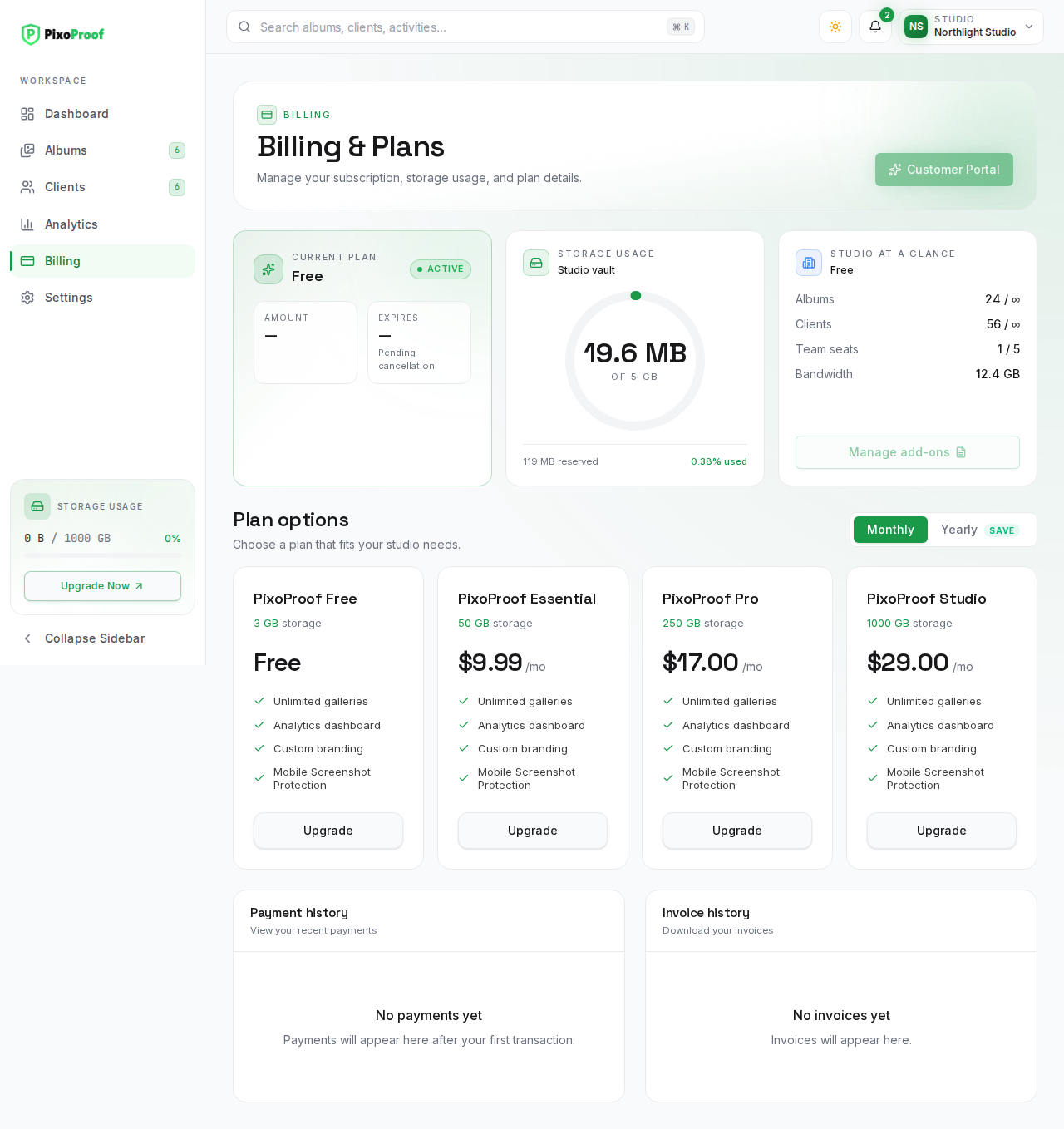
1. Current Plan Card
- Plan Name & Billing Cycle: Displays your active tier (e.g.,
PixoProof Free, or a paid plan name followed byMonthlyorYearly). - Status Badge: Shows
ACTIVE. A scheduled cancellation is shown by the Expires /Pending cancellationfield below instead. - Amount: Displays the recurring billing cost for the current plan and billing cycle (e.g.,
Free,$9.99,$17.00, or$29.00). Plan prices are set by PixoProof and shown on the plan cards below. - Renews / Expires:
- When auto-renew is active, displays the scheduled renewal date with the subtitle
Auto-renew on. - When a cancellation is scheduled, displays the final access deadline with the subtitle
Pending cancellation.
- When auto-renew is active, displays the scheduled renewal date with the subtitle
- Pending Plan Notice: If a downgrade or billing cycle modification has been scheduled for the next billing rollover, an informational banner appears detailing the upcoming tier and effective date.
- Account Credit: If you have account credit (for example, from referral rewards), a banner shows the balance; it is applied automatically to your next invoice.
2. Storage Usage Vault Card
- Vault Radial Gauge: A circular progress meter visualizing the exact storage currently used versus your plan's maximum capacity (e.g.,
0 B of 3 GB). - Reserved Capacity: A fixed
119 MB reservedlabel is shown under the gauge. - Percentage Used: Real-time percentage indicator of your storage allowance.
3. Studio at a Glance Card
- Plan Name: Shown under the card title.
- Resource Counters: Rows for Albums, Clients, Team seats, and Bandwidth. In the current interface these rows show fixed sample values (
24 / ∞,56 / ∞,1 / 5,12.4 GB) rather than your studio's live usage; see the Dashboard and Analytics pages for your real album and client counts. - Manage add-ons: A button reserved for future supplementary add-on packages. In the current interface, this control is disabled.
[!NOTE] The Customer Portal button located in the top page header is currently disabled in the web application. All active plan adjustments and cancellations are managed directly on the
/billingpage.
Comparing Available Plan Options
Below the summary cards, the Plan options section displays all subscription tiers configured for your studio.
Monthly vs. Yearly Billing Toggle
You can switch between billing frequencies using the interval toggle in the section header:
- Monthly: Displays standard month-to-month subscription rates.
- Yearly: Highlights discounted annual rates with a green Save tag. Only plans that offer a yearly price (plus your current plan) are listed.
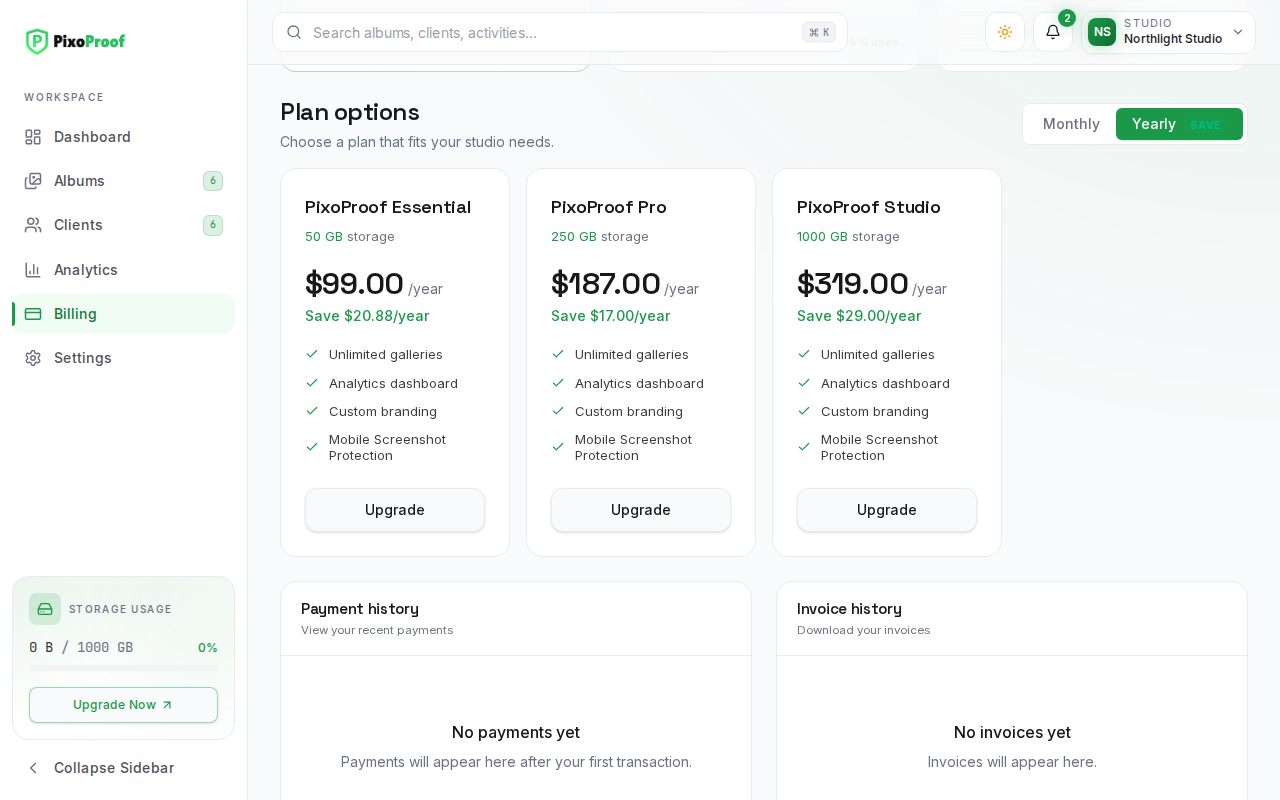
When the Yearly tab is active, each eligible plan card displays the annual savings compared with paying monthly for 12 months (e.g., Save $20.88/year or Save $29.00/year).
Plan Card Controls & Details
Each plan card outlines the following specifications:
- Tier Title: Identifies the package (e.g.,
PixoProof Free,PixoProof Essential,PixoProof Pro,PixoProof Studio). The available plans, names, and prices are configured by PixoProof and may change. - Active Status: If a plan matches your current subscription, a
CURRENTbadge appears in the card header. - Storage Allowance: The maximum file storage quota allocated to your studio vault (e.g.,
3 GB storage,50 GB storage,250 GB storage,1000 GB storage). - Pricing: The recurring subscription fee formatted per month (
/mo) or per year (/year). - Included Features:
- Unlimited galleries & clients
- Custom branding
- Analytics dashboard
- Mobile Screenshot Protection
- Action Button:
- Active plan: Disabled with a sparkle icon on your currently active tier and billing cycle.
- Upgrade: Displayed on higher-tier plans to initiate an upgrade.
- Downgrade: Displayed on lower-tier plans when on a paid subscription.
- Change billing cycle: Displayed when viewing the opposite interval for your current tier.
Payment & Invoice Records
The bottom grid organizes historical financial transactions and downloadable invoices into two dedicated panels.
Payment History
- Displays chronological records of completed charges.
- Each entry details the plan description, payment date, formatted amount with currency (e.g.,
$17.00 USD), and transaction status (SUCCEEDED,PAID,PENDING, orFAILED). - If no transactions have occurred yet (such as on a new Free account), an empty state appears: "No payments yet — Payments will appear here after your first transaction."
Invoice History
- Lists official billing invoices generated for your studio account.
- Each entry provides the invoice identification number, issue date, total amount, currency, and payment status (
PAIDorPENDING). - View Invoice (External Link Icon): Opens the hosted Stripe invoice in a new browser tab when an online receipt URL is available.
- Download Invoice (Download Icon): Downloads an official PDF copy of the invoice (
PixoProof-Invoice-<Number>-<Date>.pdf) directly to your local computer. - If no invoices exist yet, an empty state appears: "No invoices yet — Invoices will appear here."