Resetting a Forgotten Password
If you cannot remember your password, you can set a new one using a secure link sent to your account email address. If you still know your current password and just want to change it, use Settings → Security instead (see How to Manage Passwords, Sessions & Account Security).
Step 1: Request a Reset Link
- On the sign-in page, click Forgot Password?.
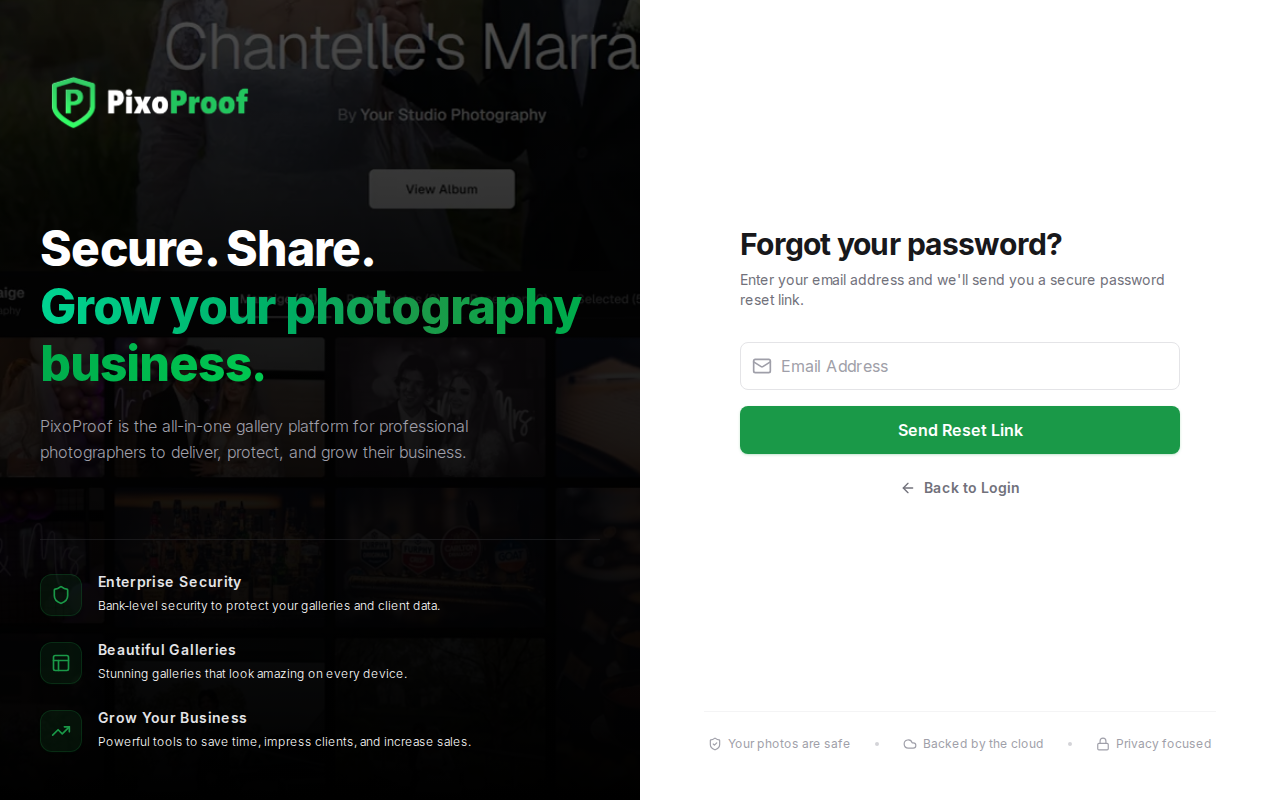
- The page reads Forgot your password?. Enter the email address you use to sign in.
- Click Send Reset Link.
You will see Check your email, with the message "If an account exists for [your email], we've sent a password reset link." For your security, PixoProof shows the same message whether or not the address has an account, so the page never reveals which emails are registered.
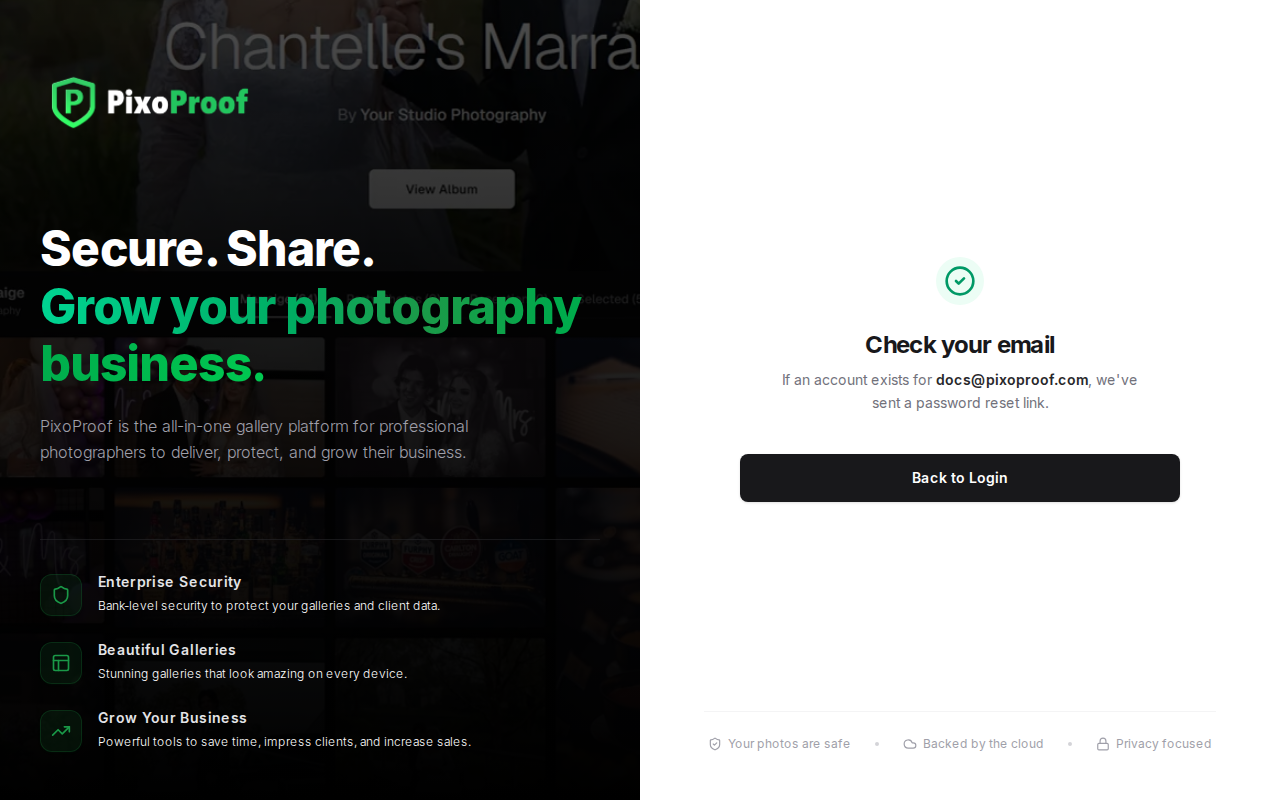
Click Back to Login to return to the sign-in page.
Step 2: Open the Email
Open the password reset email from PixoProof and click the link inside.
- The link is valid for 30 minutes.
- Each link can be used once, and requesting a new link cancels any earlier one.
- If the email has not arrived after a few minutes, check your spam or junk folder, then request a new link.
Step 3: Choose a New Password
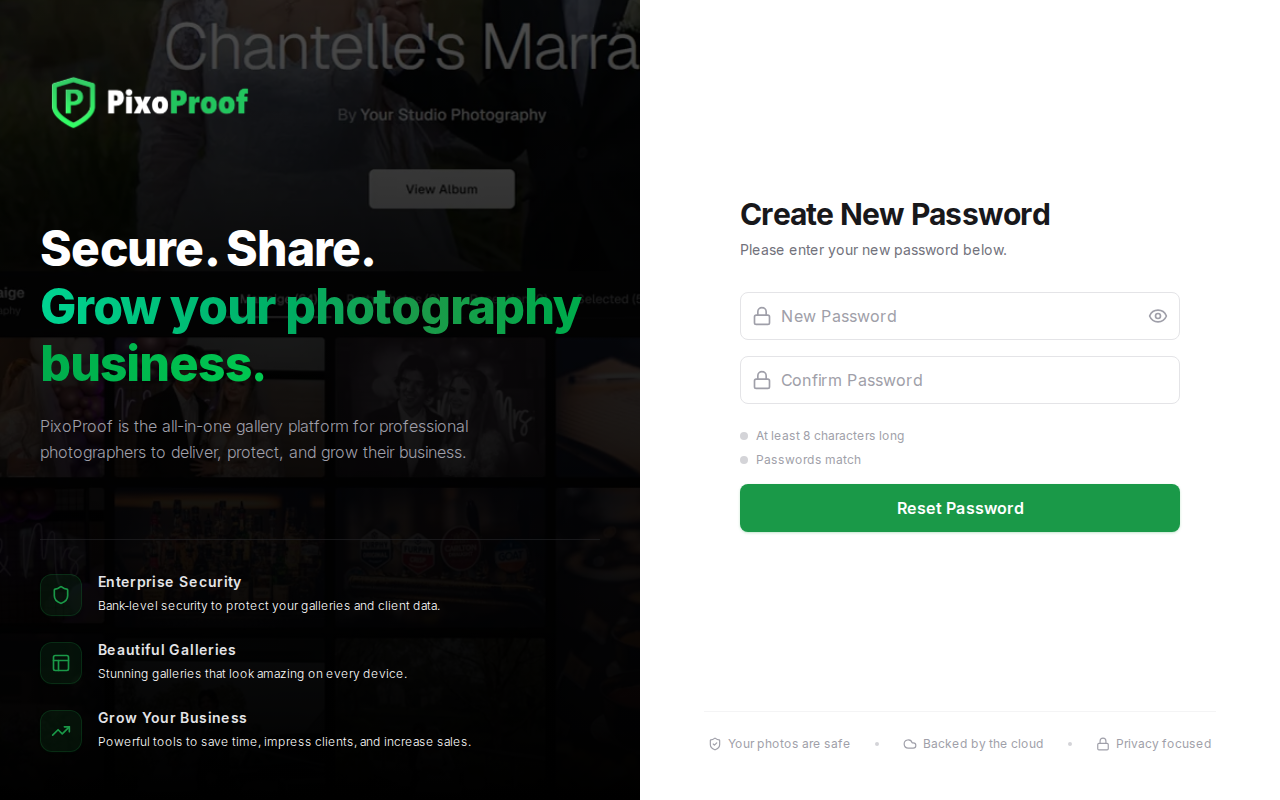
The link opens the Create New Password page.
- Enter your new password in New Password. Click the eye icon to show or hide it.
- Enter it again in Confirm Password.
- Check the two requirements below the fields. Each dot turns green when it is met:
- At least 8 characters long
- Passwords match
- Click Reset Password.
When it succeeds, you will see Password Reset Complete. For your security, resetting your password signs you out of every browser and device, including any that were still signed in. Click Continue to Login and sign in with your new password. PixoProof also emails you to confirm that your password was changed.
If Something Goes Wrong
- "Invalid Reset Link" — the link you opened is incomplete or broken (for example, it was cut off when copied). Click Request New Link to start again.
- "Invalid or expired password reset token." — the link is more than 30 minutes old, has already been used, or was replaced by a newer link. Go back to Forgot Password? and request a new one.
- You land on your Dashboard instead of the reset page — you are already signed in in that browser. Sign out first, or open the link in a private window.
After Resetting
Resetting your password signs you out everywhere, so anyone who had access to your account is signed out too. Sign in again with your new password. Browsers you used before will be treated as new devices, so PixoProof emails you a "New sign-in" notice the first time you sign in from each of them.
Signed up with Google? You can use these same steps to give your account a password, so you can sign in with either your email and password or Continue with Google.