How the Refer a Friend Program Works
Know another photographer who could use PixoProof? Invite them with your personal referral link. When they sign up and start a paid plan, you can both receive account credit that is applied to your next invoices automatically.
Opening the Referral Page
- Click your studio name or avatar in the upper-right corner of the top bar.
- Select Refer a Friend.
The page header reads Help another photographer protect their work and lists the current rewards, for example "They get … account credit when they subscribe to a paid plan" and "You get … account credit as a thank-you."
The reward amounts are set by PixoProof and can change. The amounts shown on your referral page are always the current ones. If you already have referral credit waiting, a badge in the header shows "… credit on your account".
How a Referral Earns Credit
- Share your link. Copy it, send it on WhatsApp, or email an invitation from the page.
- They sign up. When your friend creates an account through your link or invitation, the referral is tracked automatically. They never type a code.
- They subscribe. The referral qualifies when their first payment for a paid plan goes through.
- You both get credit. Credit is added to each account and applied automatically to the next invoice. There is nothing to claim.
Sharing Your Referral Link
The Your referral link panel shows your personal link.
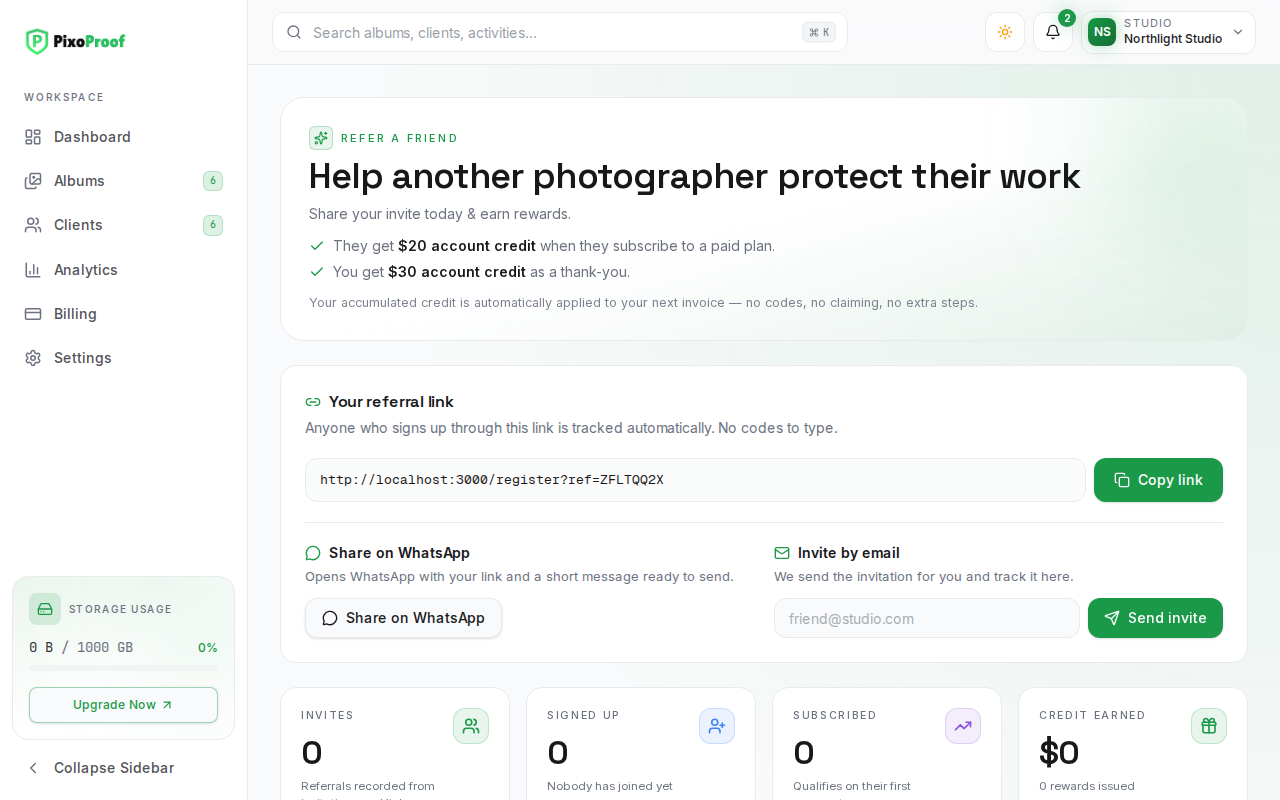
- Copy link — copies the link to your clipboard. A "Referral link copied." message confirms it. If your browser blocks clipboard access, click the link box to select it and copy it manually.
- Share on WhatsApp — opens WhatsApp (the app on mobile, WhatsApp Web on desktop) with your link and a short message ready to send. You choose the recipient and press send yourself.
When someone opens your link, PixoProof remembers it in their browser for up to 30 days, so the referral still counts if they sign up later, refresh the page, or sign up with Continue with Google.
Inviting Someone by Email
Under Invite by email, enter your friend's email address and click Send invite. PixoProof sends the invitation for you and adds the person to your referral list.
- Sending to the same address again resends the invitation (you will see "Invitation resent to …") instead of creating a duplicate. The list shows how many times you invited them.
- You cannot invite your own email address ("You cannot refer yourself.").
- You cannot invite an address that already has a PixoProof account ("That email already has a PixoProof account.").
- If the person already joined through your referral, you will see "That photographer already joined through your referral."
Your Referral Stats
Four tiles summarise your referrals:
- Invites — referrals recorded from your email invitations and from sign-ups through your link.
- Signed up — people who created an account, with the percentage of invites.
- Subscribed — people who started a paid plan, with the percentage of sign-ups.
- Credit earned — the total credit you have earned, with the number of rewards issued.
Tracking Your Referrals
The Your referrals list shows everyone you have referred, with their status and Your credit for that referral (the amount, "… pending" while it is being applied, or — if no credit applies).
Use the filters above the list to narrow it: All, Invited, Signed up, Subscribed, Rewarded.
Referral Statuses
| Status | Meaning |
|---|---|
| Invited | You invited them, or they opened your link, but they have not created an account yet. |
| Signed up | They created an account but have not paid for a plan yet. |
| Subscribed | Their first payment went through and the referral qualified. Credit is being issued. |
| Rewarded | Credit has been issued. |
| Reward pending | Credit could not be applied yet. PixoProof retries automatically; you do not need to do anything. |
| Expired | The referral ran out of time before they signed up or subscribed. |
| Not eligible | The referral did not meet the program rules, for example a first payment below a required minimum. |
| Cancelled | The referral was cancelled. |
Referral Details
Click any referral to open its details:
- How they arrived: "Invited by email" or "Joined via your link".
- Your credit and their credit, each with its amount and state (for example, "Account credit — applied to the next invoice").
- A Timeline of every step, such as the invitation, sign-up, subscription, and rewards, with dates.
Program Rules to Know
- Credit is account credit, applied automatically to your next invoice.
- Only paid plans qualify. A referral qualifies on their first payment for a paid plan, and only once; renewals and later payments do not earn more credit.
- First invitation wins. If a friend was invited by more than one photographer and signs up without using a link, the photographer who invited them first gets the referral.
- Referrals may expire. When an expiry period applies, the referral must sign up and subscribe within it. Resending an email invitation restarts the period.
- There may be a reward limit. If you reach the maximum number of referral rewards for your account, the page tells you. You can keep inviting photographers, but further referrals will not earn you credit.
- The program can be paused. When it is, a notice appears at the top of the page. Your link keeps working and referrals already in progress are kept, but new sign-ups do not earn credit until the program is switched back on.
Referral milestones also appear in your Activity History (for example, "Referral credit was added to your account").